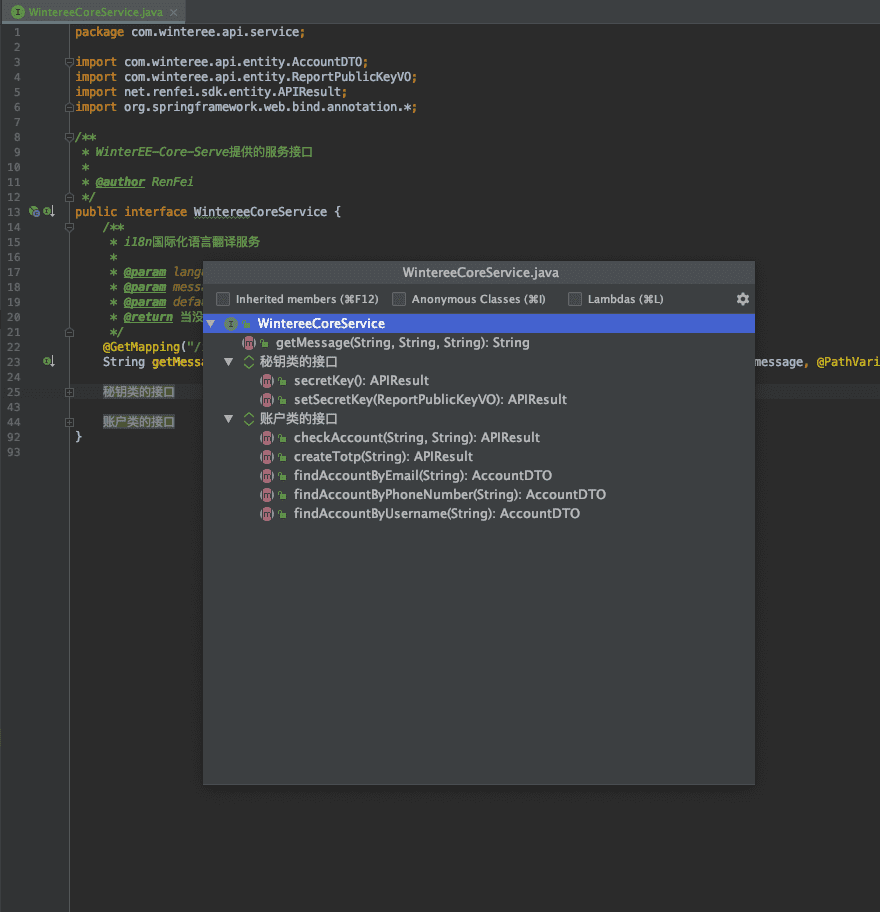
In real work we often write very long class files, and code readability keeps getting worse. Think about scrolling up and down through hundreds or even over a thousand lines to find the piece of code you want — isn’t there a more elegant way? Of course there is. Today I’m introducing the editor-fold tag to optimize your code structure.
In college I majored in C#.NET. Back when I used C#, there was a tag “#region” and “#endregion” — C#‘s preprocessor directives that let you specify expandable or collapsible code blocks when using VS’s code editor outline view.
Later I transitioned to Java development. Does Java have this feature? Such a useful feature must exist, so I’m introducing the editor-fold tag.
How to Use
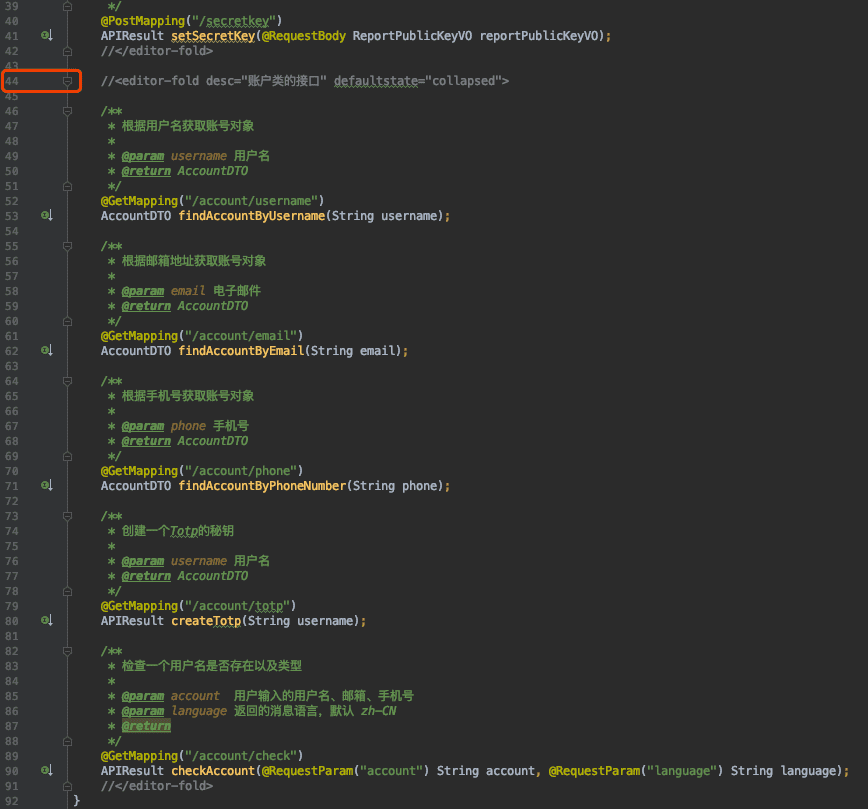
Add line comments before and after your code, for example:
//<editor-fold desc="Account class interface" defaultstate="collapsed">
Your Code...
//</editor-fold>
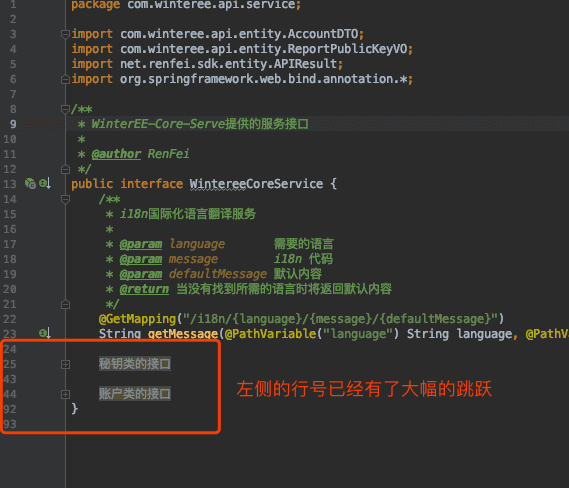
Here “desc” is a description of this code, and “defaultstate” is whether this code should be expanded or collapsed by default. After adding it you can click the plus sign on the left to fold them all at once, as shown below:
View Code Structure
I use the IntelliJ IDEA development software; I’m not familiar with other environments, so here I only introduce IDEA’s shortcuts and features.
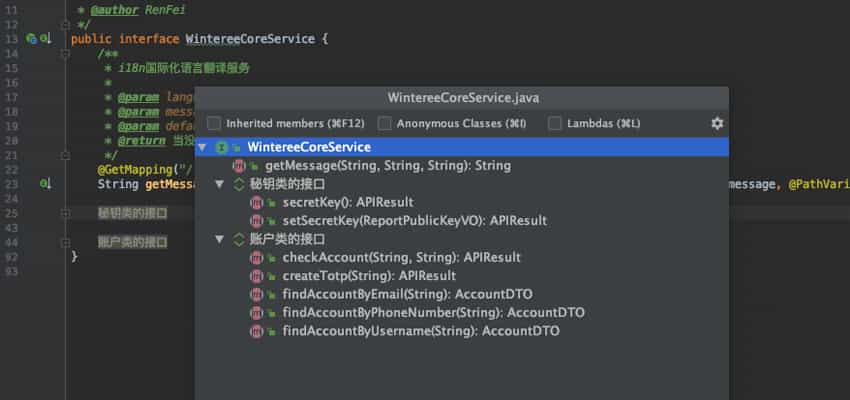
If you’re a macOS user, in IDEA you can use the shortcut “command + F12”; Windows users can use “Ctrl + F12” to bring up the code-structure window, which clearly shows your code structure — whether it’s hundreds or over a thousand lines, it can quickly jump you to the code block you want.