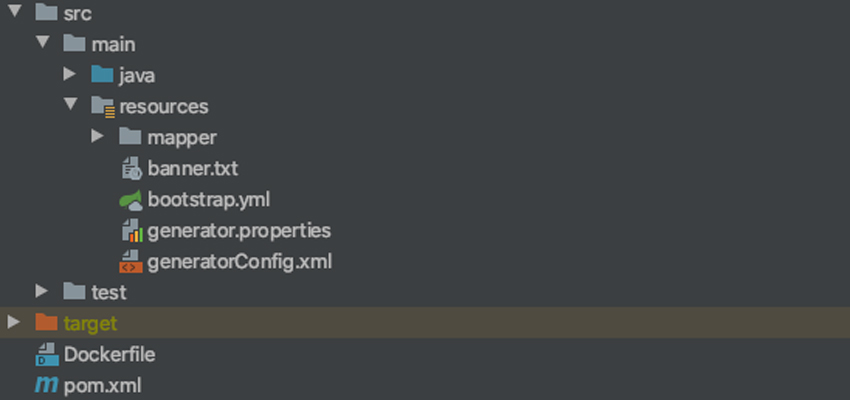
When using the IDEA development tool, sometimes a Spring project’s config files application.yml or bootstrap.yml aren’t recognized properly — the icon isn’t the green little leaf, causing the project to fail to start. At this point we need to manually check IDEA’s configuration to fix it.
Error 1: Wrong resources Folder Configuration
Check whether the resources folder icon is the yellow icon. The correct icon is shown below:
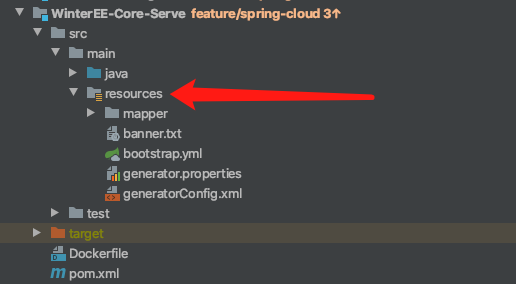
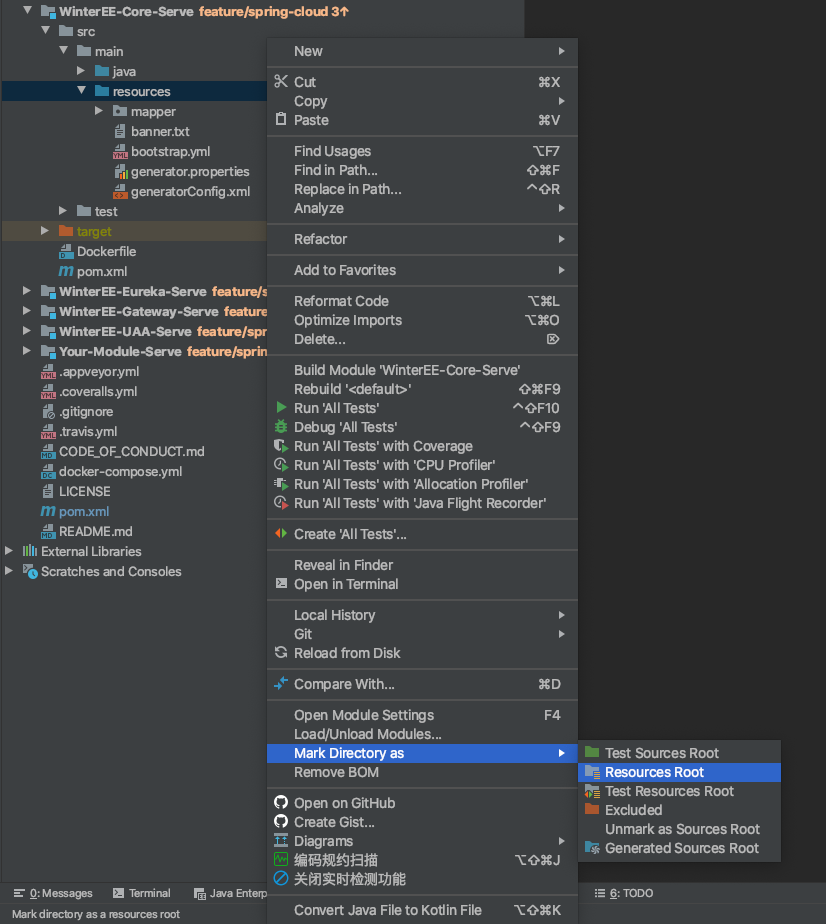
Fix: right-click the resources folder and choose Mark Directory as > Resources Root
Error 2: Wrong File Type Configuration
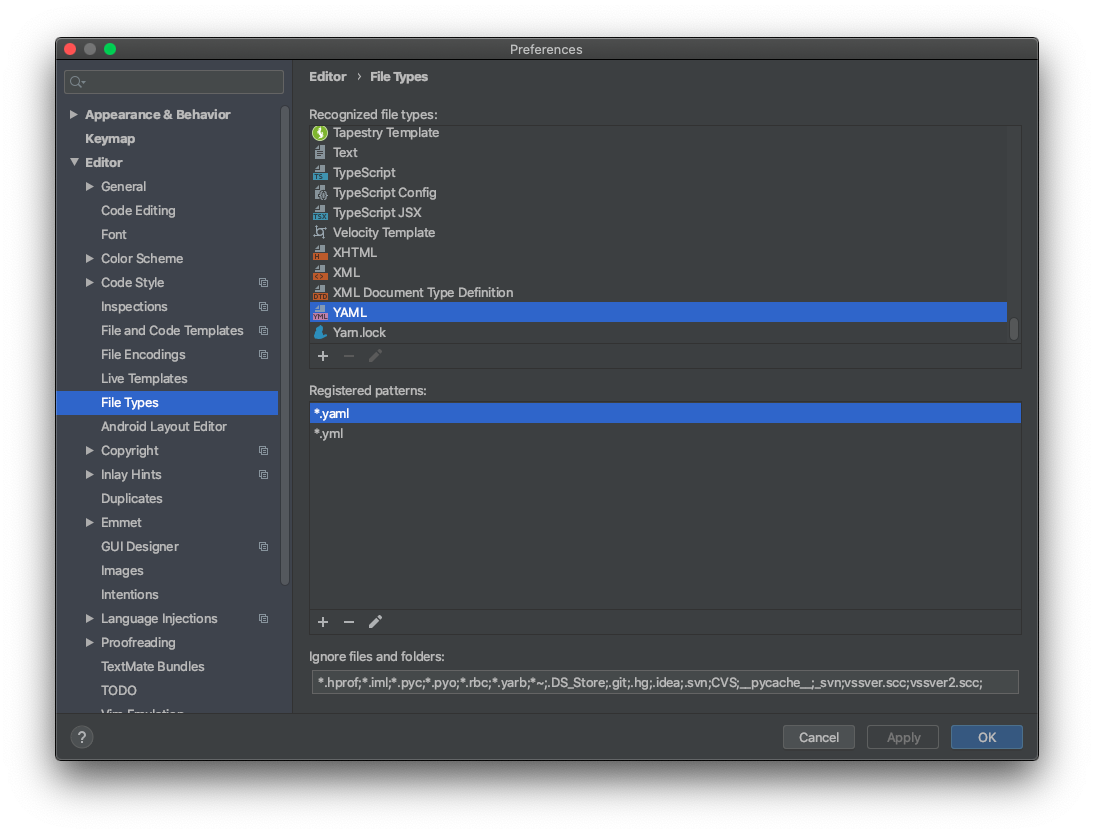
Check IDEA’s File Types settings. Sometimes it’s because application.yml is set in the file type settings, so check it. Normally it should be under YAML; if it’s under another type it’s wrong, and you can find it by the icon. The normal configuration is shown below:
Error 3: Missing Spring Boot Plugin, Causing IDEA to Think This Isn’t a Spring Boot Project
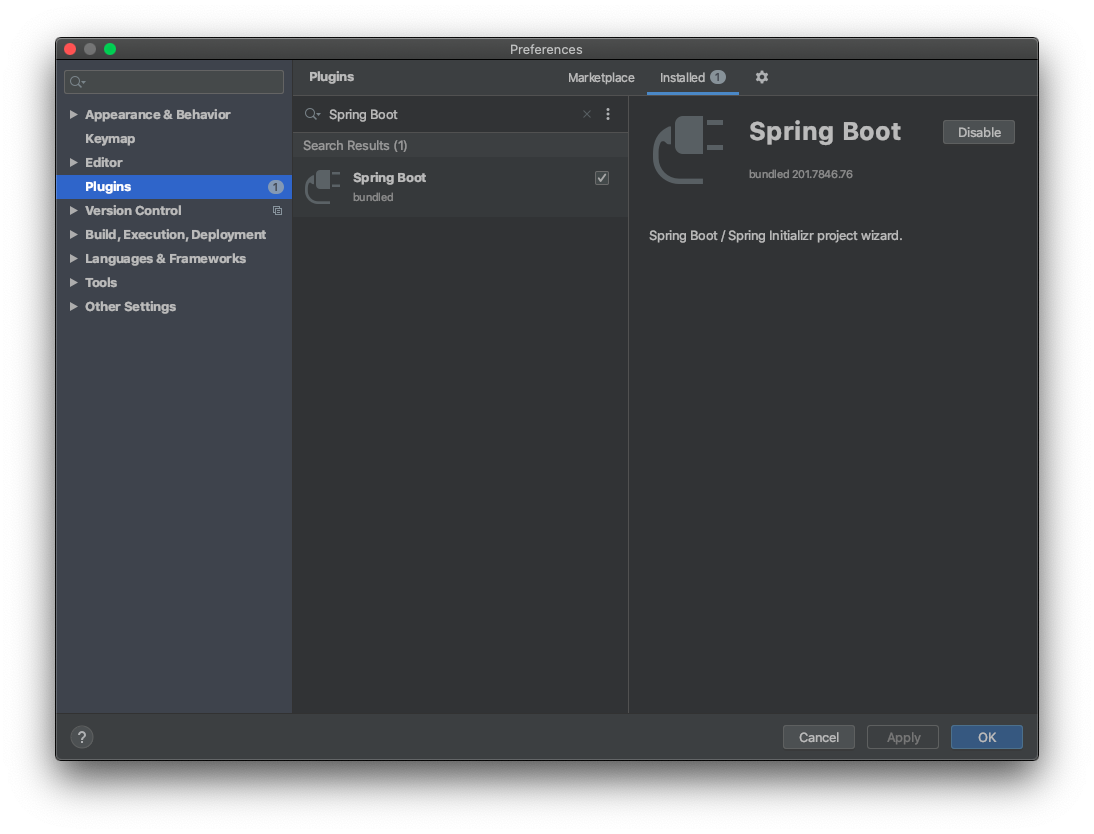
Check the Spring Boot plugin; install it if it’s not installed. The normal configuration is shown below:
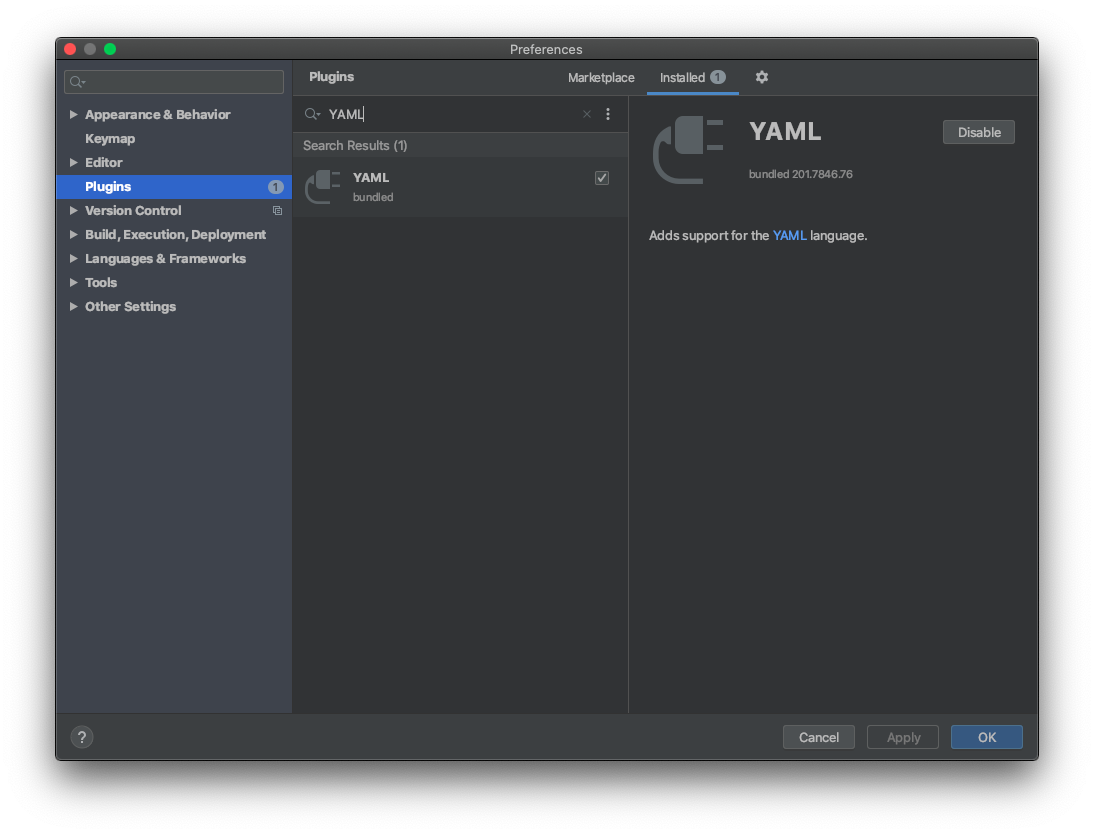
Error 4: Missing YAML Plugin, Causing Inability to Recognize yml Config Files
Check the YAML plugin; install it if it’s not installed. The normal configuration is shown below: