

An IPA signed with an iOS enterprise certificate can’t be listed on the App Store. It can only be distributed out-of-band — for instance, by putting a QR code on your company website that Apple users scan to install. Between the IPA file and the QR code you need a plist file describing your app, and installation goes through the itms-services protocol. That’s what this tutorial covers.
Uploading the IPA
Once you have the IPA, upload it to a public server that can serve an https:// URL — that’s mandatory, since iOS 7 required HTTPS for this deployment. If you don’t have your own public server or can’t serve HTTPS, you can upload it to a Git host such as GitHub, GitLab or Gitee; those public services all give you an HTTPS download link for your IPA.
Say we’ve uploaded it and got this download URL: https://cdn.renfei.net/app/renfei.ipa. On to the next step.
Building the plist File
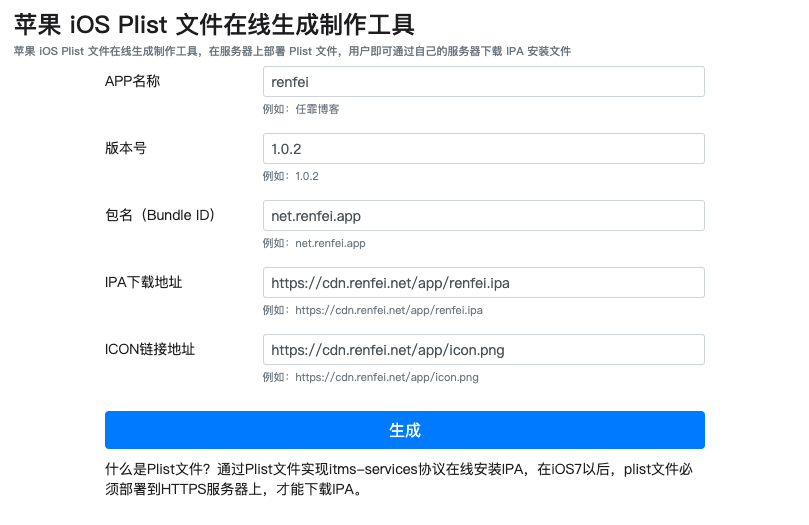
With the IPA download URL in hand you also need a plist file. You can use my online iOS plist file generator to make one. Enter your app’s name, its current version (for example 1.0.2), and its Bundle ID — ask a developer if you’re unsure. For the IPA URL, paste the download link from the previous step (it must be HTTPS), and for the icon URL, give the address of a square icon image; I use a 96x96 PNG.
Click generate and you’ll get a .plist file. As in step one, upload it to a public server to get an HTTPS URL, for example https://cdn.renfei.net/app/renfei.plist.
Building the itms-services Link
With those two steps done we need to build an itms-services link, which is simple: just append the .plist URL from the previous step, like this:
itms-services://?action=download-manifest&url=https://cdn.renfei.net/app/renfei.plistJust replace the trailing https://cdn.renfei.net/app/renfei.plist with your own .plist URL — again, it must be HTTPS.
That’s essentially it. You can now turn that itms-services link into a QR code — but it has to be opened in the system browser, and people usually scan QR codes with WeChat, so here’s an extra step.
Making It Work with WeChat Scanning
To support WeChat scanning you need a web page that checks whether it’s being opened in the system browser; if not, it tells the user to open it in their system browser. Then you turn that page’s URL into the QR code users scan.
Include jQuery first; here’s the core JavaScript:
function app() {
    let userAgent = navigator.userAgent;
    let Agents = ["Android", "iPhone",
        "SymbianOS", "Windows Phone",
        "iPad", "iPod"];
    let flag = true;
    for (let i in Agents) {
        if (userAgent.indexOf(Agents[i]) > -1) {
            flag = false;
            break;
        }
    }
    if (flag) {
        // This is desktop
        let cont="<div class=\"item\">\n" +
            "            <p class=\"answer\">Please open this page in your phone's system browser to download and install.<br/>\n" +
            "                <img src=\"assets/img/qr.png\" style=\"width: 200px;border: 0;margin: auto;\"/>\n" +
            "            </p>\n" +
            "        </div>";
        $("#ios-cont").html(cont);
        return true;
    } else {
        // This is mobile
        let isAndroid = userAgent.indexOf('Android') > -1 || userAgent.indexOf('Linux') > -1;
        let isIOS = !!userAgent.match(/\(i[^;]+;( U;)? CPU.+Mac OS X/);
        if (isAndroid) {
            // Android
            window.open("https://cdn.renfei.net/app/renfei.apk");
        } else if (isIOS) {
            // iOS
            // Check whether this page was opened in iPhone Safari
            if (userAgent.indexOf('Safari') > -1) {
                // It is Safari
                window.open("itms-services://?action=download-manifest&url=https://cdn.renfei.net/app/renfei.plist");
            } else {
                // Not Safari, keep handling it and show a prompt
                return true;
            }
        } else {
            alert("Your mobile operating system isn't supported; only iOS or Android are.");
        }
    }
    return false;
}