Students installing cracked or localized software on a Mac for the first time may encounter the following system prompts, which prevent the app from opening:
-
“xxx.app is damaged and can’t be opened. You should move it to the Trash.”
-
“XXX can’t be opened because it is not from the Mac App Store.”
-
“XXX can’t be opened because it is from an unidentified developer.”
-
“XXX can’t be opened because Apple cannot check whether it contains malicious software.”
In fact, this is triggered by macOS’s security policy, not actual damage. Cracked and localized software is often modified by third parties, so the certificate in the software is not trusted by the system, or the software was downloaded from a website rather than the App Store. The solution is to modify macOS’s security policy to allow running unverified apps.
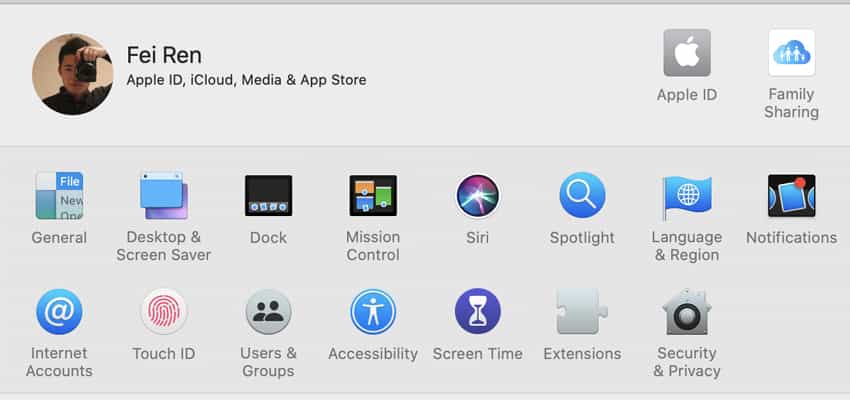
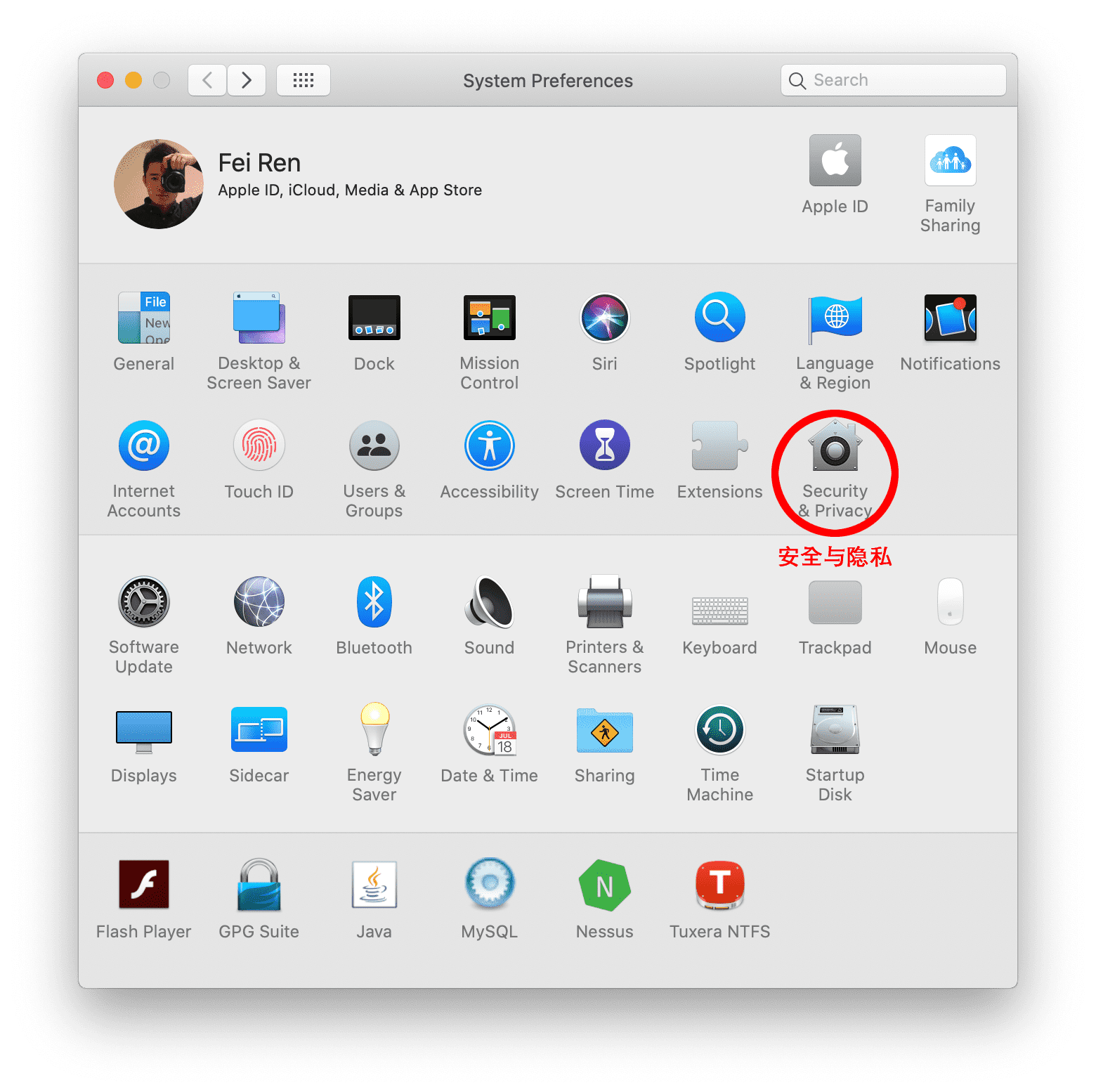
Step 1: Open System Preferences — click the Apple logo in the top-left corner — click System Preferences — select “Security & Privacy”, then select the “General” tab as shown below:
Step 2: Click the lock in the bottom-left to unlock
Here you have two choices. One is to select “App Store and identified developers”, but you’ll need to return to System Preferences > Security & Privacy and click “Allow” each time you run untrusted software. The other is to select “Anywhere”.
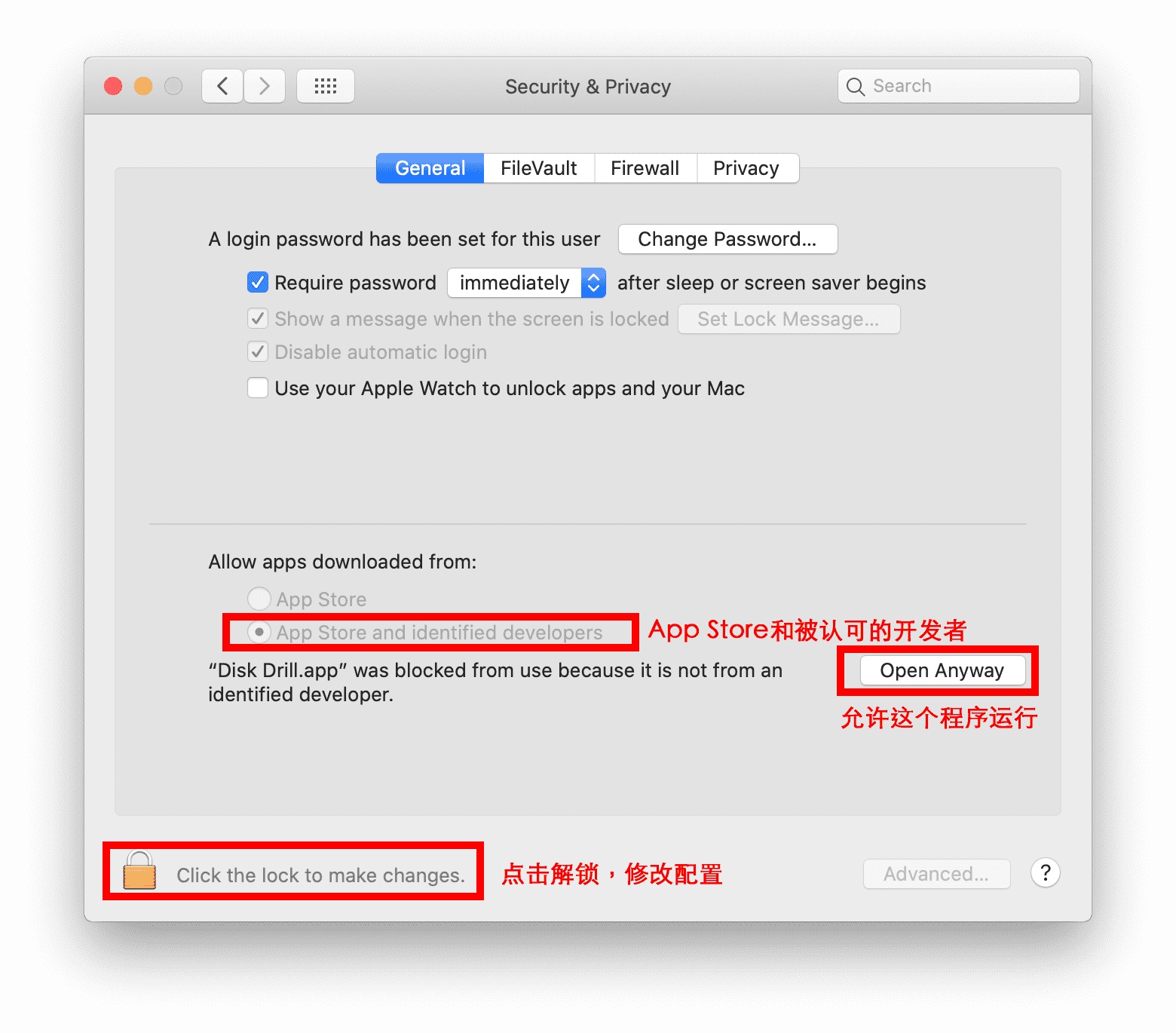
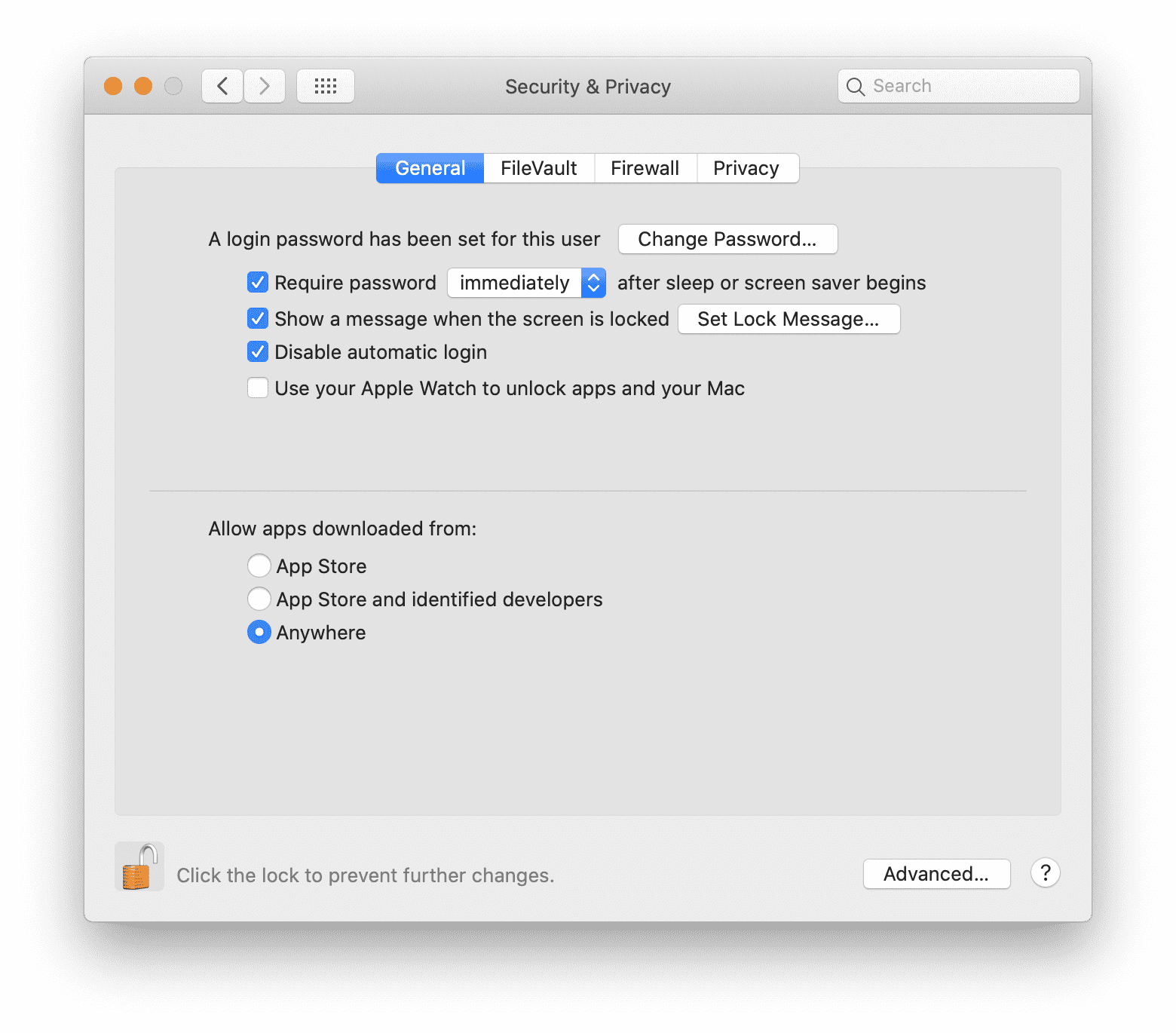
If your system version is macOS Sierra 10.12 or later, you won’t see the “Anywhere” option—the system hides it. The solution is: open Terminal, run the command, press Enter, then enter your password and press Enter:
sudo spctl —master-disable
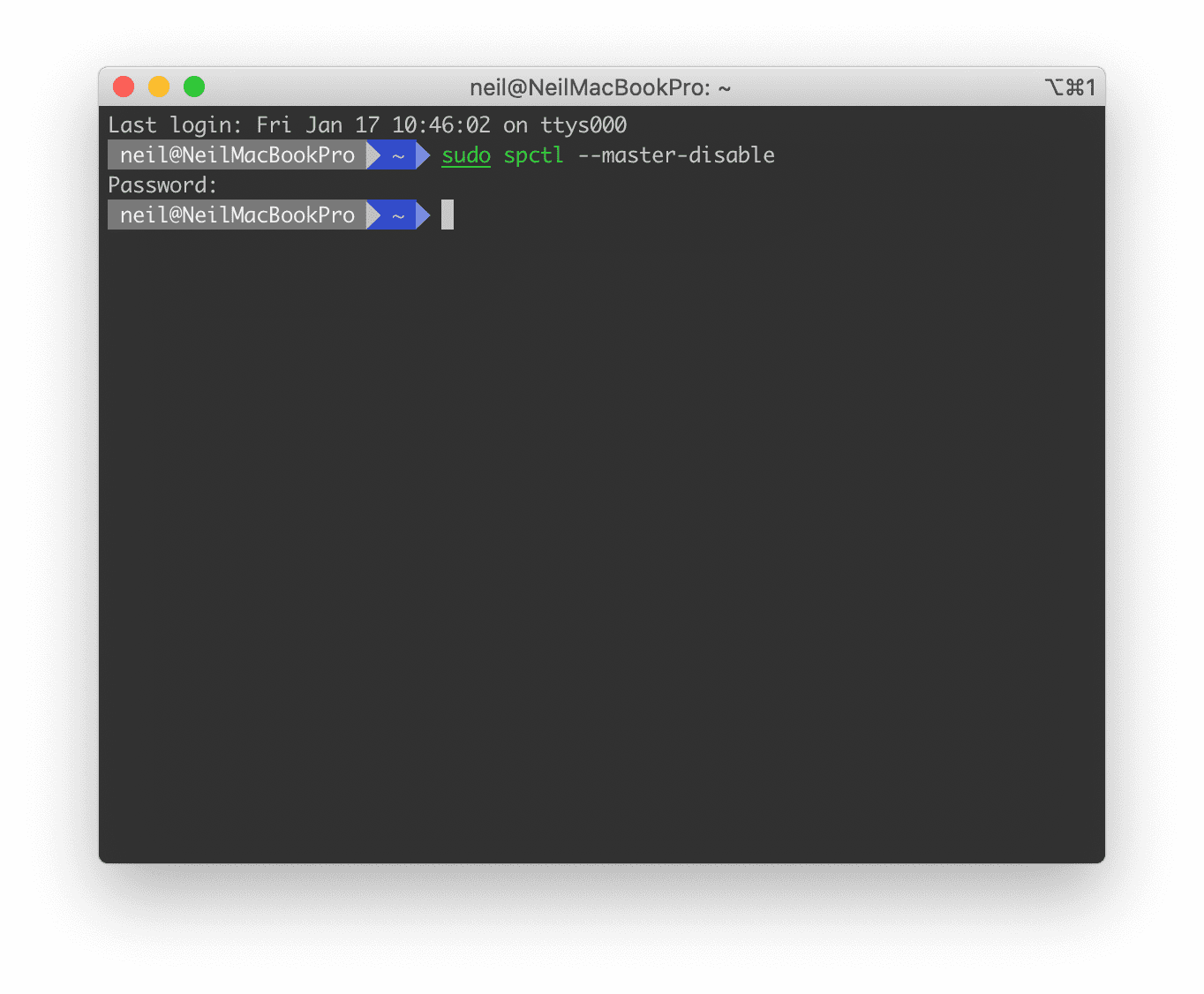
At this point, your Mac can install any software. Enjoy your computer.
Permission Issues on macOS Catalina 10.15 and Later
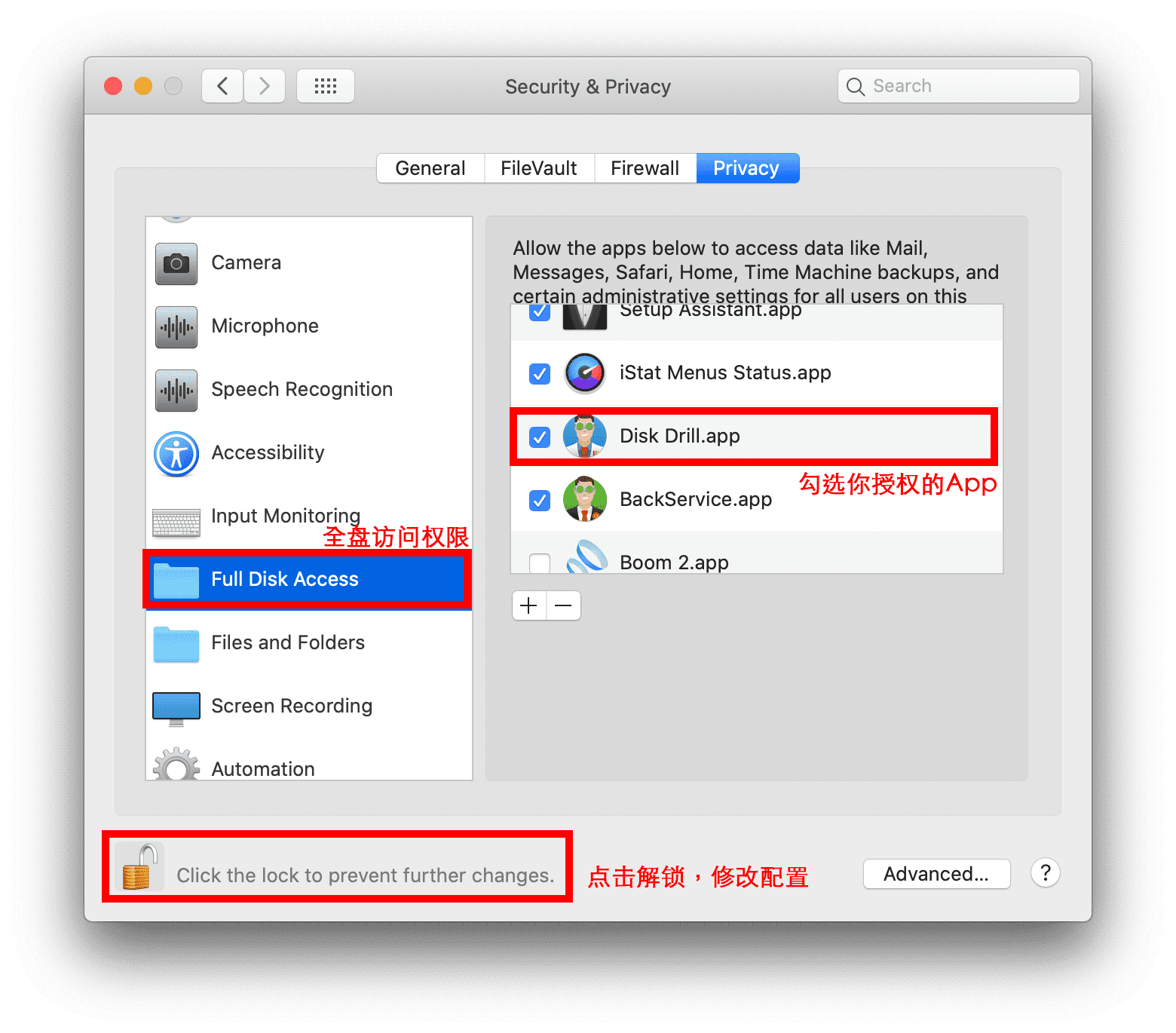
If your Mac has been updated to macOS Catalina 10.15 or later, you may also run into permission issues. The new system restricts access to the camera, screen, disk, and contacts. For example, if the software has a screenshot feature, it must have screen-capture permission. Taking data-recovery software as an example, I need to grant it full-disk access: