Parallels Desktop loses network access on macOS Big Sur and can’t connect USB devices, reporting “network initialization failed” and failing to attach USB to the VM. Here’s the fix.
Opening the Config Files
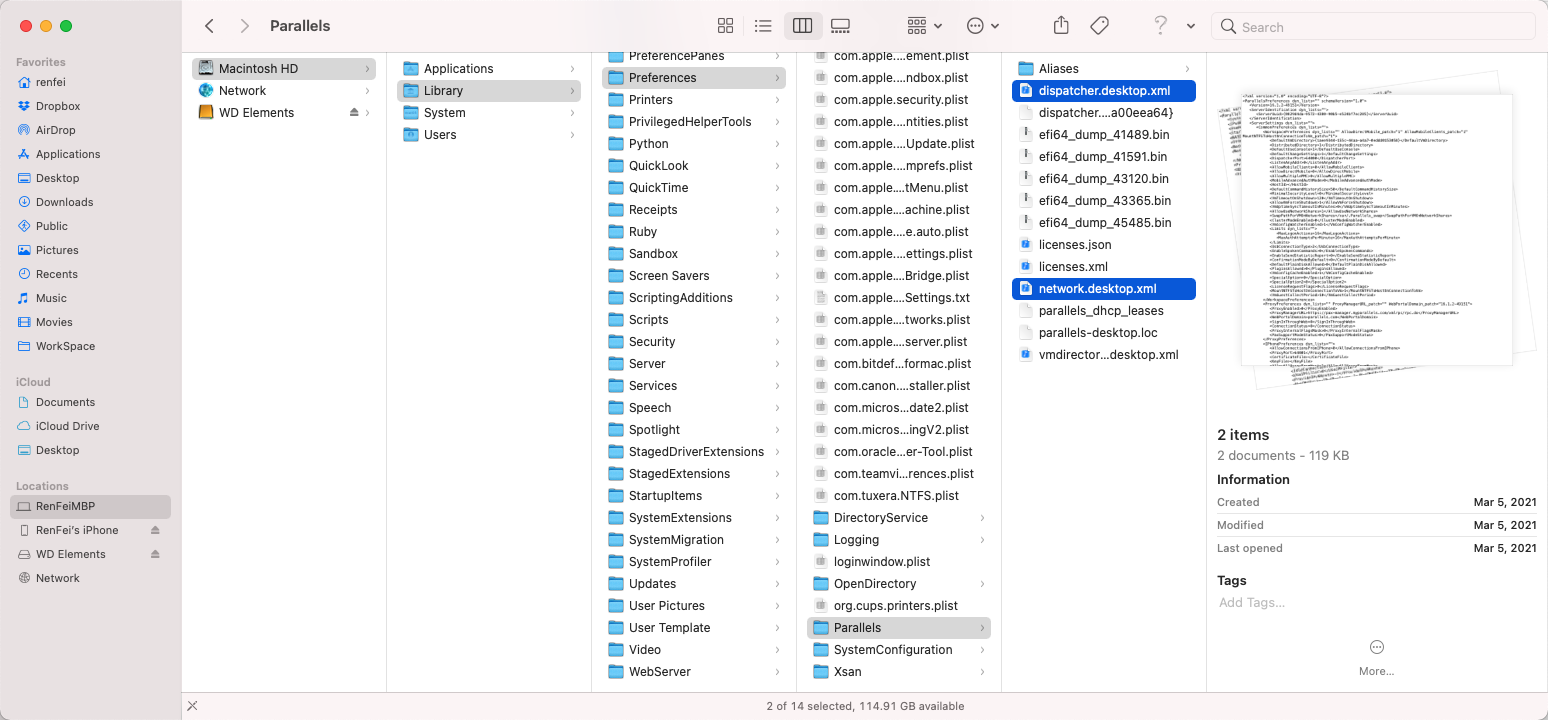
- Open Finder, click “Go” > “Go to Folder” in the menu bar, or press shift + command + G, and go to
/Library/Preferences/Parallels - Find and open
network.desktop.xmlanddispatcher.desktop.xml
Editing network.desktop.xml
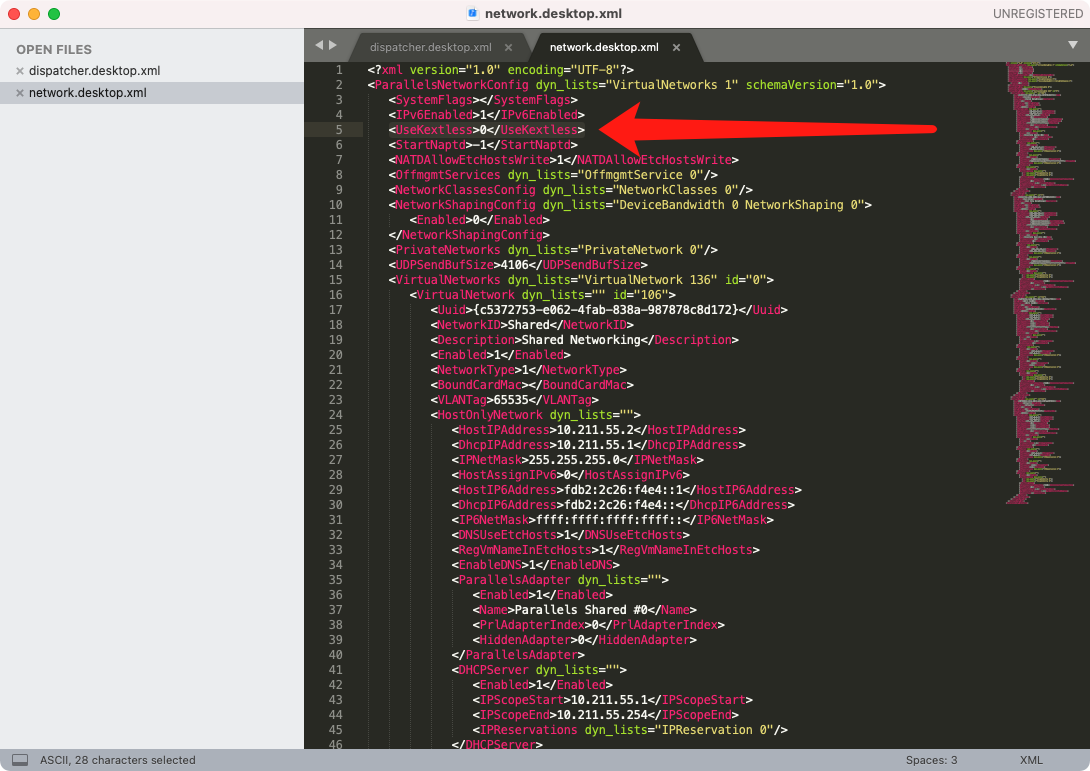
Editing network.desktop.xml fixes the network initialization failure.
Open it in a text editor — I’m using Sublime Text — find <UseKextless>-1</UseKextless> (it may instead be <UseKextless>1</UseKextless>), change it to <UseKextless>0</UseKextless>, and save. You’ll be prompted for a password when saving; enter your system password to confirm.
Editing dispatcher.desktop.xml
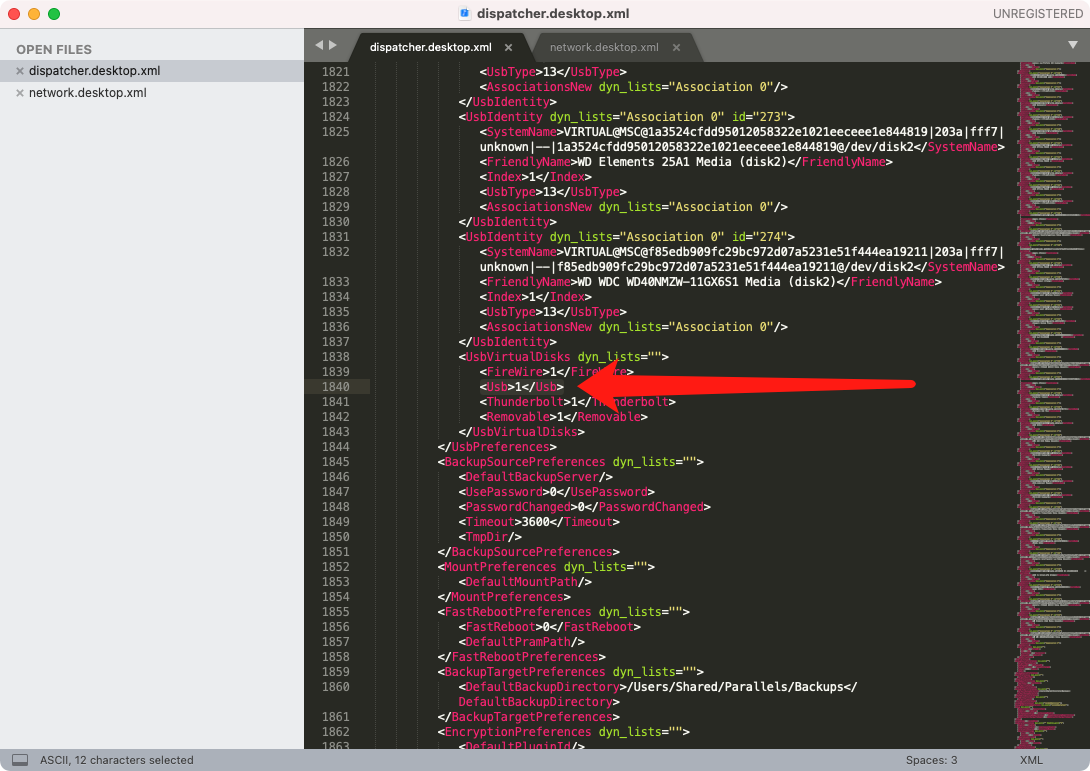
Editing dispatcher.desktop.xml fixes USB devices failing to connect.
Open it in a text editor — again Sublime Text for me — find <Usb>0</Usb>, change it to <Usb>1</Usb>, and save. Enter your system password at the prompt to confirm.
Security & Privacy
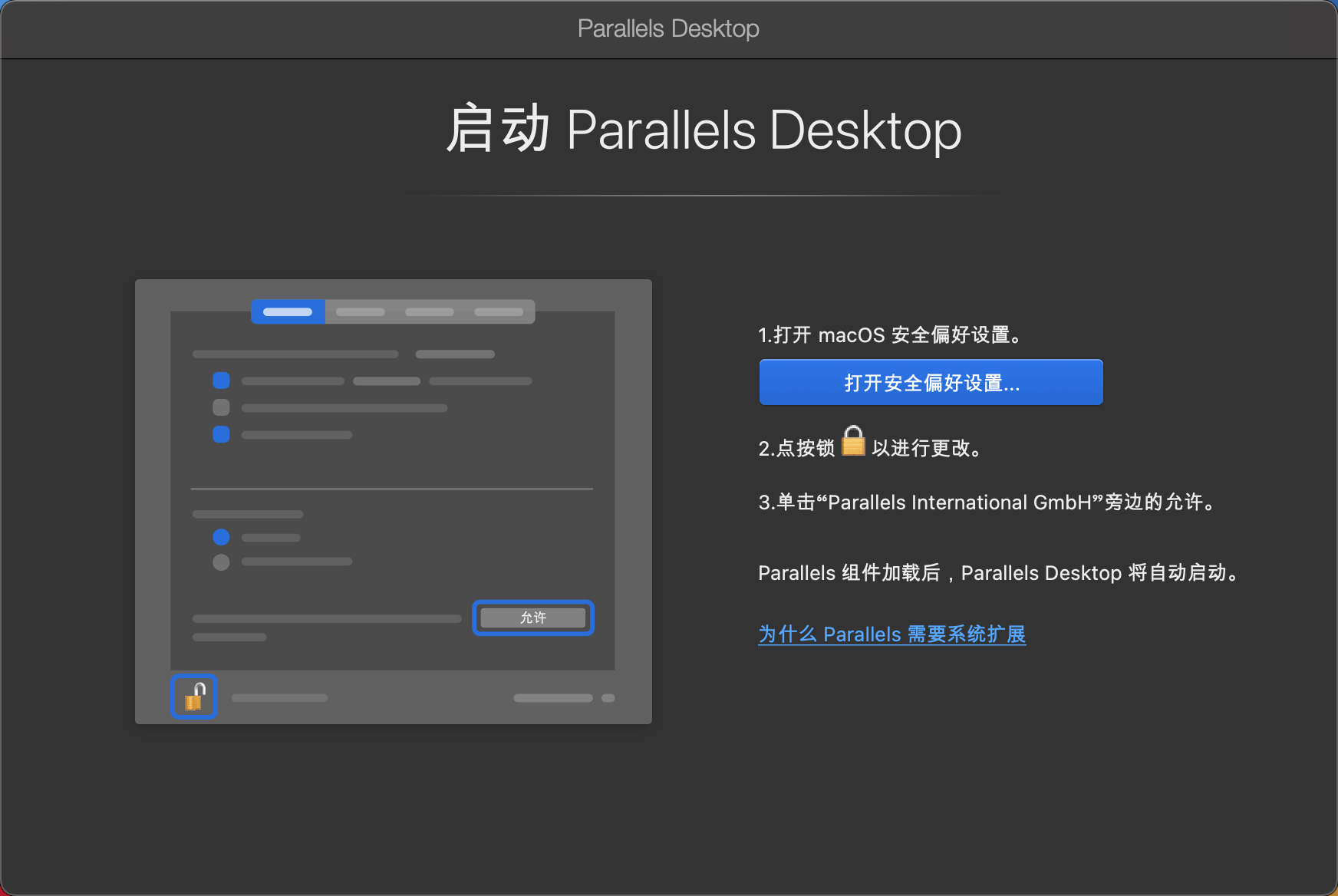
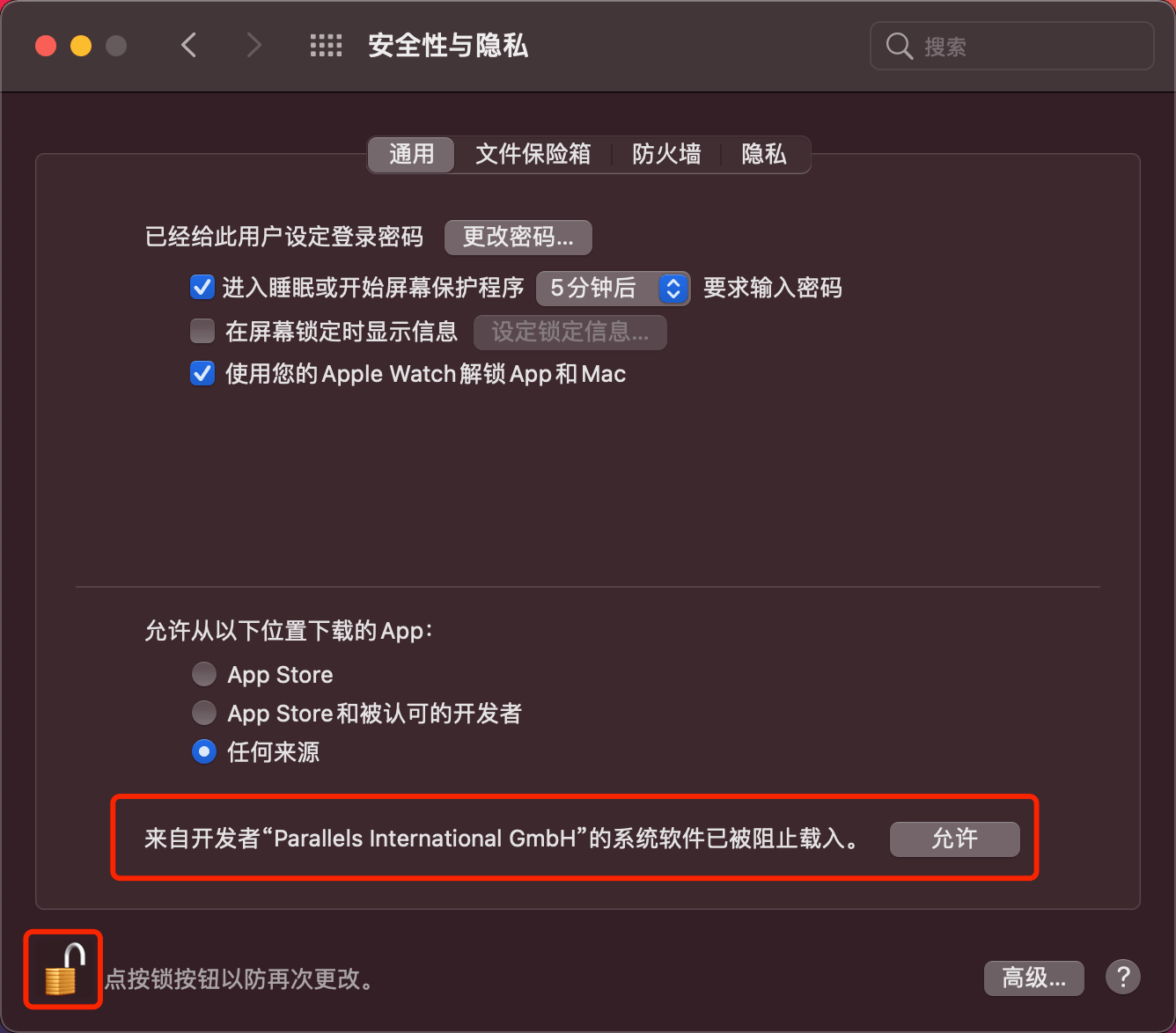
Now launch Parallels Desktop; it may say Parallels needs system extensions. Open System Preferences, go to Security & Privacy, click the lock icon in the lower-left to unlock, then click Allow next to “System software from developer “Parallels International GmbH” was blocked from loading.” It will ask you to restart — confirm and reboot, and after restart networking and USB should work normally.