
Want to know what Los Angeles looks like at 4 a.m.? Spend ten minutes setting up a free remote desktop in Los Angeles and you’ll see. Using Amazon’s global availability zones, you can even stand up remote desktops matching your needs anywhere in the world.
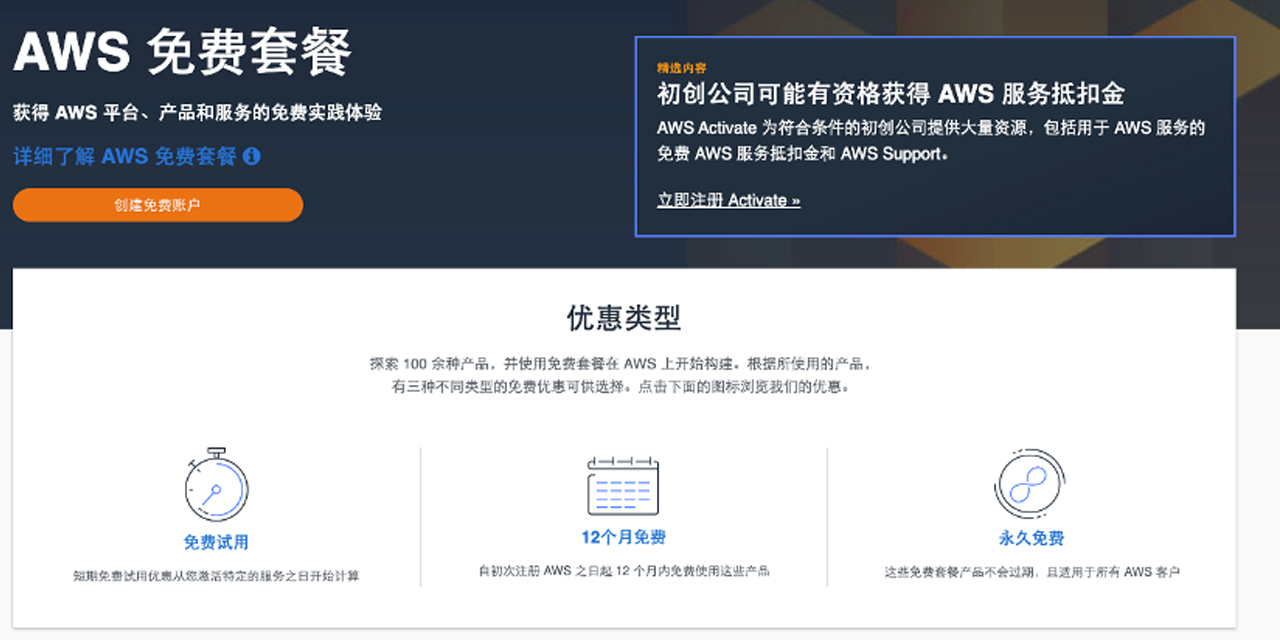
This tutorial assumes you already have an overseas AWS account. To save time, I’ll skip registration. Registering for an AWS account currently also gets you the 12-month free tier, including popular products like EC2.
Step 1: Launch an Amazon Lightsail Instance
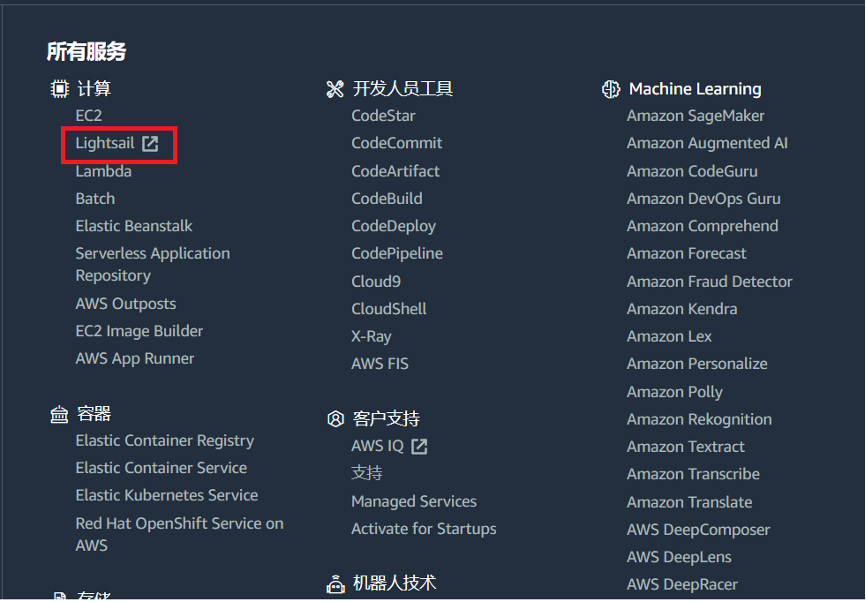
Find Lightsail under Compute in All Services, and click through to the Lightsail console.
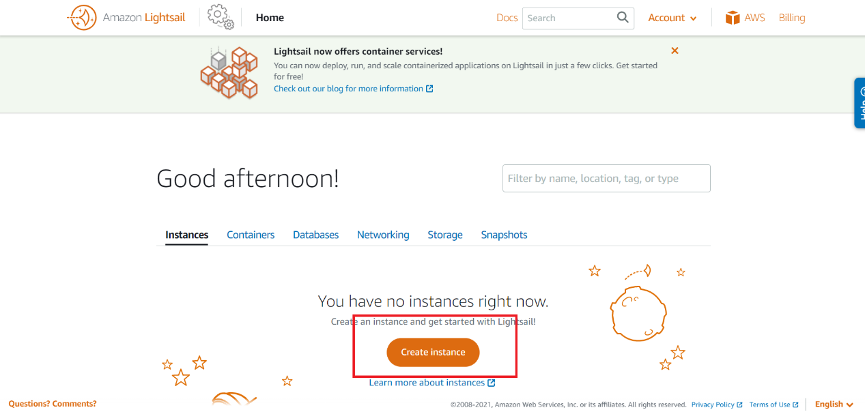
On the Amazon Lightsail welcome screen, click Create instance to create and configure a Lightsail instance. You can also switch the language to Chinese in the bottom-right corner to make setup easier.
Step 2: Configure the Remote Desktop
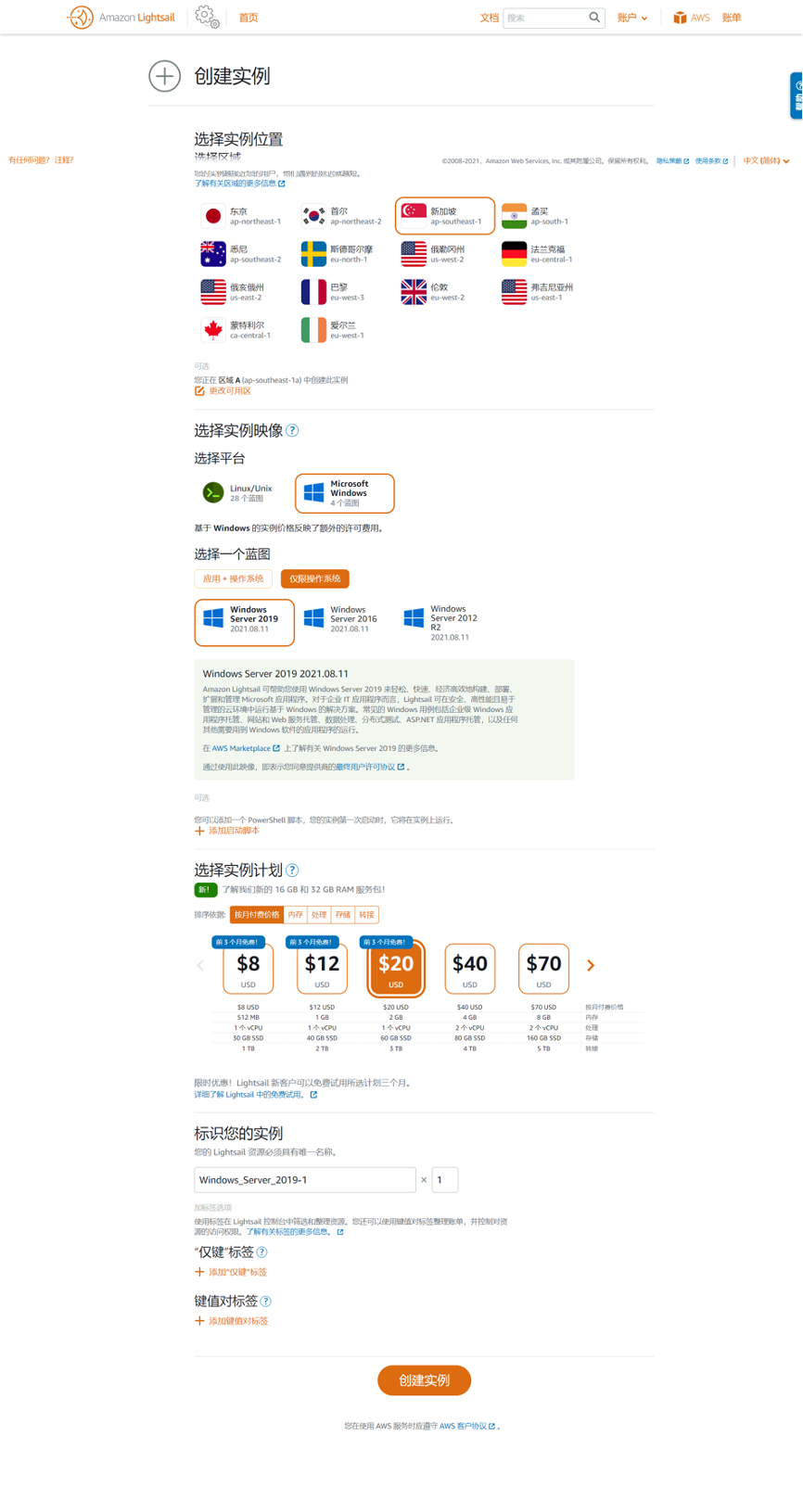
In the popup, from top to bottom you can choose:
- The virtual desktop’s IP location
- The OS platform (beginners should pick Windows for easier management; unless you have special requirements, take the latest Windows version)
- The plan and pricing tier (the free trial configs are all usable for three months)
Once you’ve chosen, click Create instance.
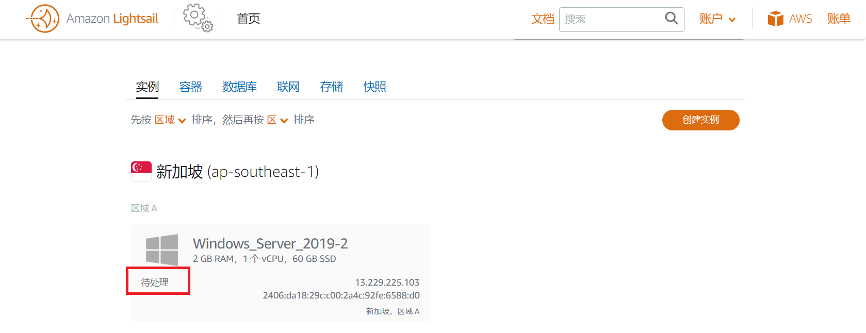
A status of “Pending” means your Lightsail instance is being created.
Step 3: Start the Remote Desktop
Wait a moment; once the instance shows “Running”, setup is complete. There’s also a monitor icon in the top-right corner.
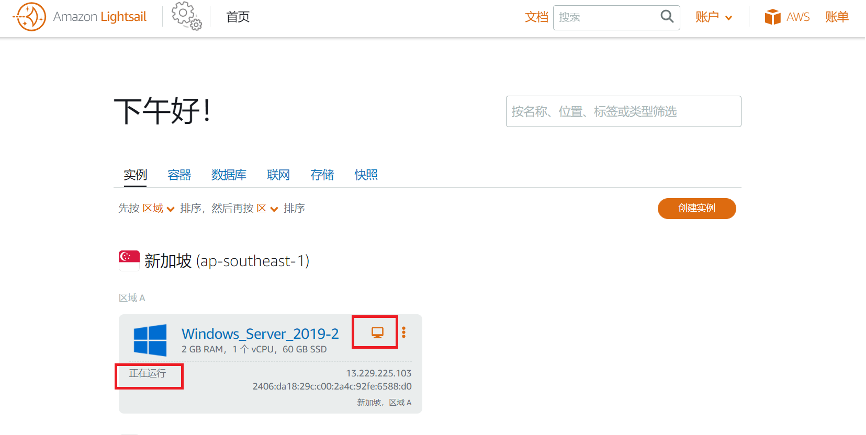
Click the monitor icon and a virtual desktop window pops up.
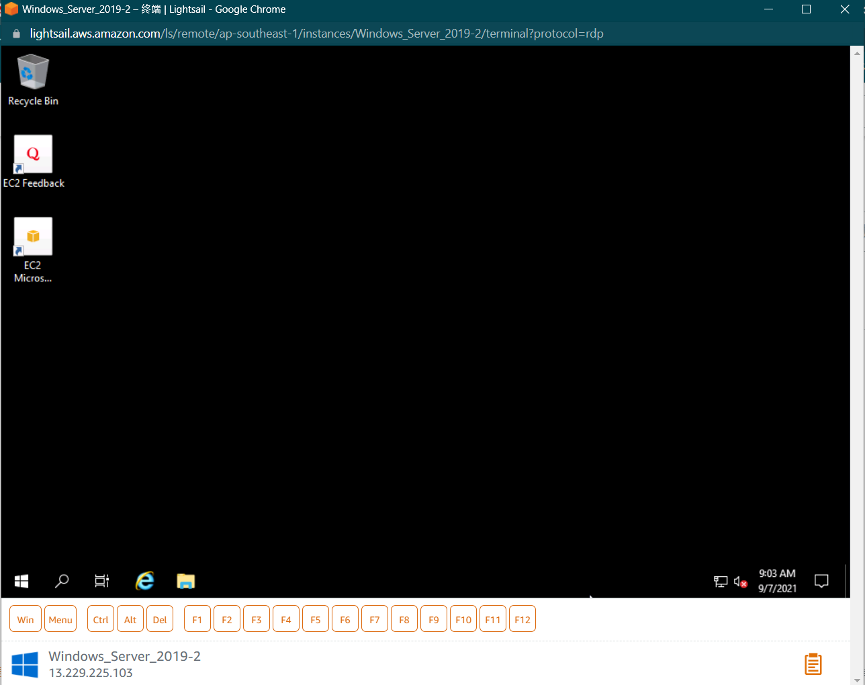
Step 4: Use the Remote Desktop
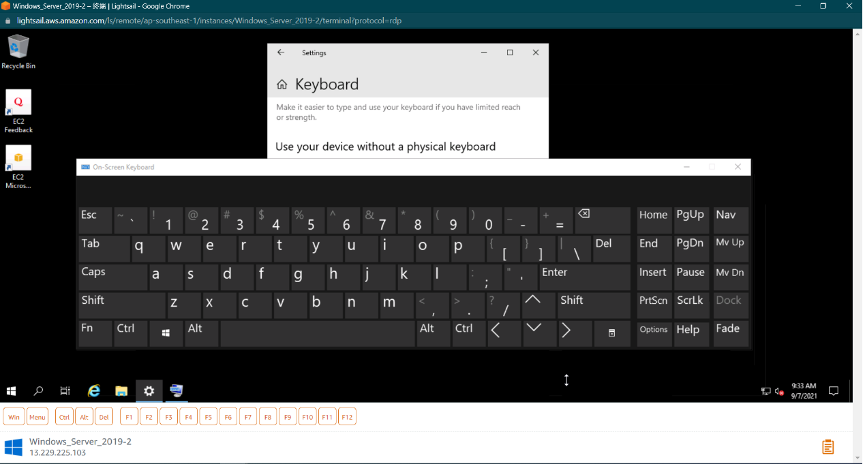
You can bring up the virtual keyboard to type.
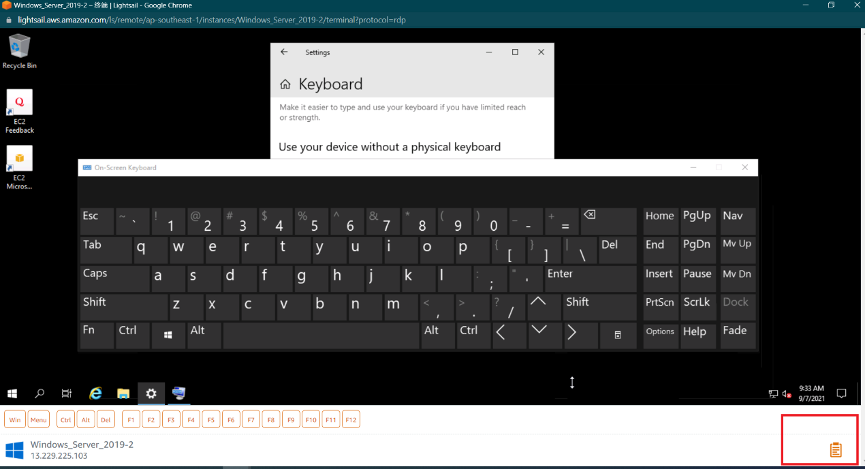
Or use the remote clipboard in the bottom-right corner, type your characters there, then copy and paste into the remote desktop.
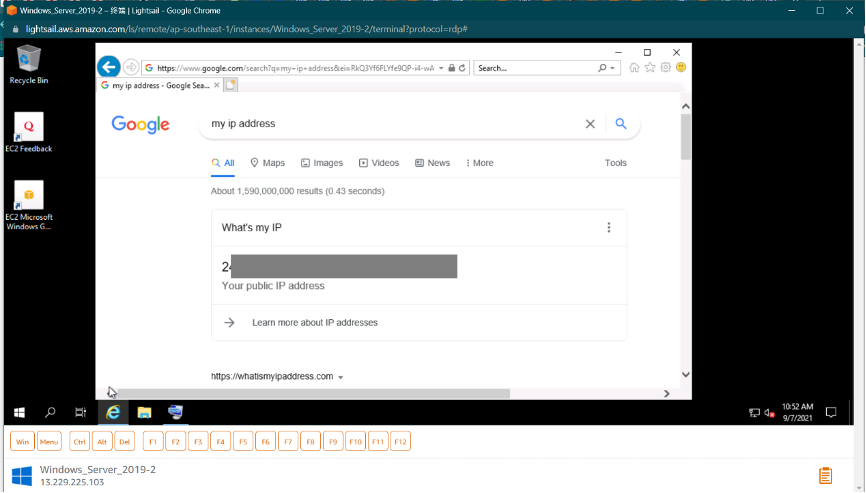
You can check the remote desktop’s IP address using its browser.
That’s It
That’s the end of the tutorial. You can use the remote desktop to see the scenery you want to see, or to learn what you want to learn. The other features are yours to explore. Best of all, none of it costs a cent.