
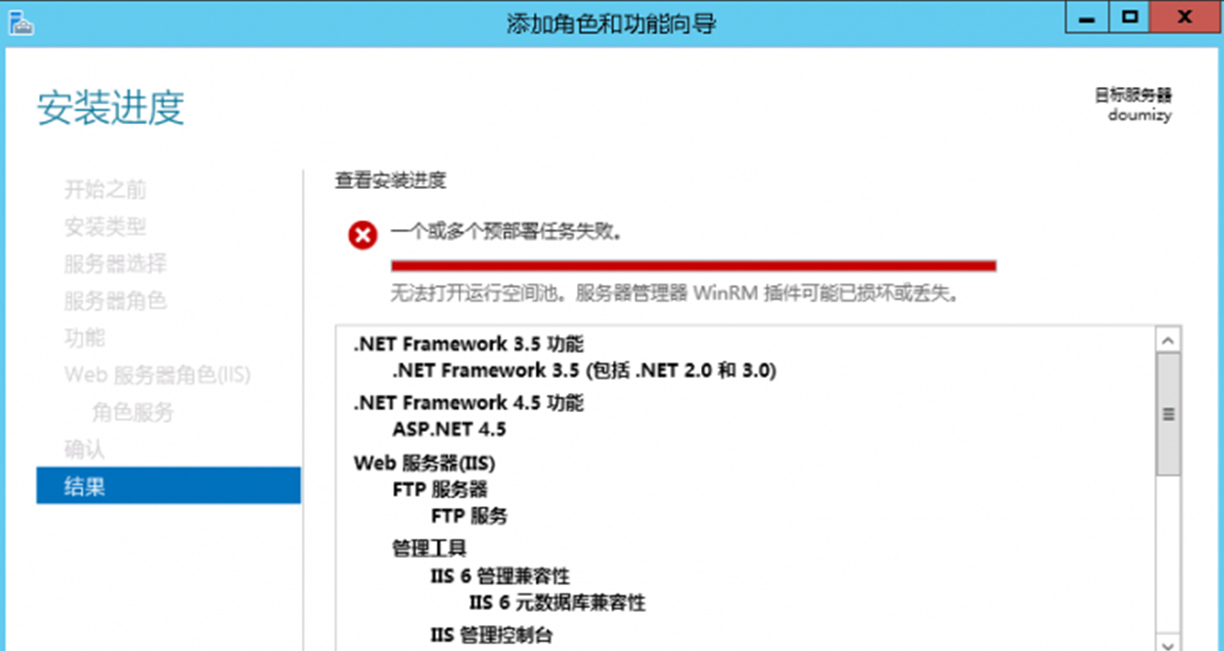
Cannot Open the Runspace Pool. The Server Manager WinRM Plug-in May Be Corrupted or Missing. The blogger encountered this problem on Windows Server 2012 R2, and shares it here.
At first the server had no FTP installed. Later I wanted to install FTP; I didn’t want to use a third party, and IIS has FTP functionality, so I wanted to install it. But following the wizard to the end, it reported “Cannot Open the Runspace Pool. The Server Manager WinRM Plug-in May Be Corrupted or Missing.” I searched the web a lot but couldn’t fix it, and didn’t know why, so I gave up fixing it. But I still needed the functionality — how to manage without the Server Manager? Read on.
After giving up fixing “Cannot Open the Runspace Pool. The Server Manager WinRM Plug-in May Be Corrupted or Missing.”, I thought of Linux. Friends who manage servers must know the famous Linux server, and managing a Linux server means knowing the Shell — managing the server with command lines. So I thought of using Windows’ Power Shell, installing the wanted functionality with commands, without the “Server Manager” “tool”. So I looked up the commands and made the following attempts:
View Installed Features with Windows Power Shell
// Power Shell code:
get-windowsfeature web*
Run the above Power Shell command; its meaning is obvious — get the system packages starting with web, because all IIS packages start with web. The result is as follows.


We see the installed services and uninstalled features; installed ones show “[X]” before them, uninstalled ones show ”[ ]”. On my server the only uninstalled IIS feature is FTP, so what I want is to install the FTP feature.
Install Features with Windows Power Shell
// Power Shell code:
install-windowsfeature web-ftp-server,web-ftp-ext
Run the above Power Shell command. Note Power Shell scripts are case-insensitive, so for convenience I used all lowercase commands, to install the FTP feature.

Wait for Installation to Complete
Wait for the installation to complete, check again, and we see FTP is installed, without using “Server Manager” and without errors. 
