I’m Xiaobai — the bai of “freeloading”. First, thanks to JH GitLab for this freeloading platform — I mean, SaaS platform — for the free service it provides.
Many people don’t know grassroots webmasters exist. I got into the website-building scene back in high school, and I’m one of them. Our crowd runs personal sites, personal blogs, hobby-sharing sites — we’re basically the bottom layer of the internet, mostly gathered around shared interests, and most of us will never make a cent.
Because most of us have no revenue, server resources, storage space, and network traffic are all expensive for a grassroots webmaster. To spread the cost, we tend to use free image hosts to offload traffic, taking as much pressure off our own servers as possible and squeezing down the hosting bill.
An image host is simply a server storing pictures: you upload an image, get a URL back, and hotlink that URL on your own page. Your server stores no images at all, saving space and bandwidth.
JH GitLab
JH is the domestic edition of GitLab, with all data stored inside the country, so the network quality is excellent. Beyond hosting developer code, used differently it also works as an image host for grassroots webmasters. Here’s my reasoning for choosing JH GitLab:
-
The JH GitLab SaaS platform has dedicated reliability engineers running it, with multiple mechanisms at the bottom protecting code and data from loss and keeping the platform highly available, so the service doesn’t go down.
-
The JH GitLab SaaS platform is hosted in domestic data centers, with good network quality and plenty of total bandwidth. Not quite CDN-class, but it rarely feels slow.
-
JH GitLab’s core feature is Git version control, so every change we make has version history, which effectively prevents accidentally deleting resource files.
Uploading Images
Create a public repository on the JH GitLab SaaS platform — it must be public, private won’t work.
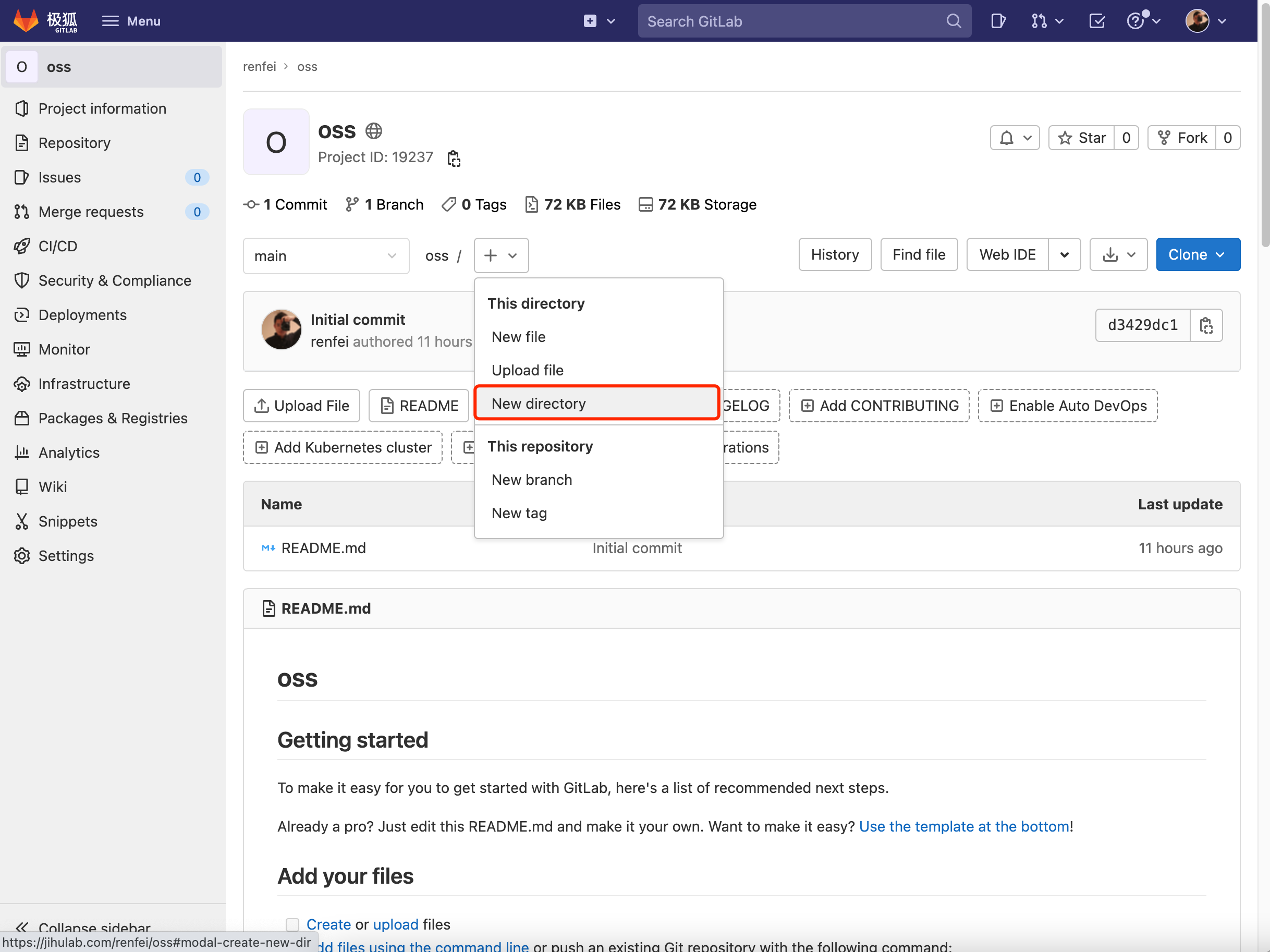
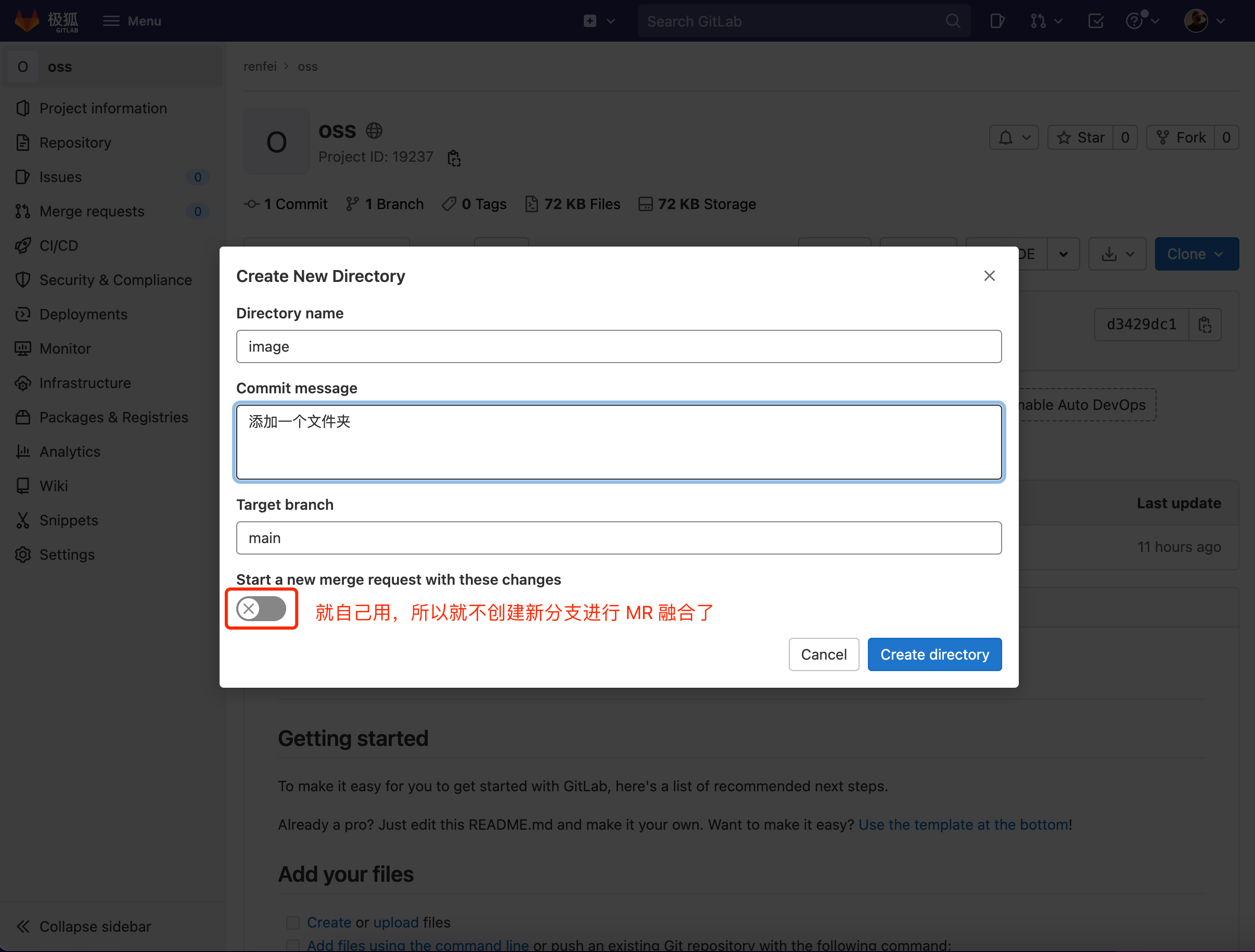
Then we can create folders right on the web page, for example an img folder:
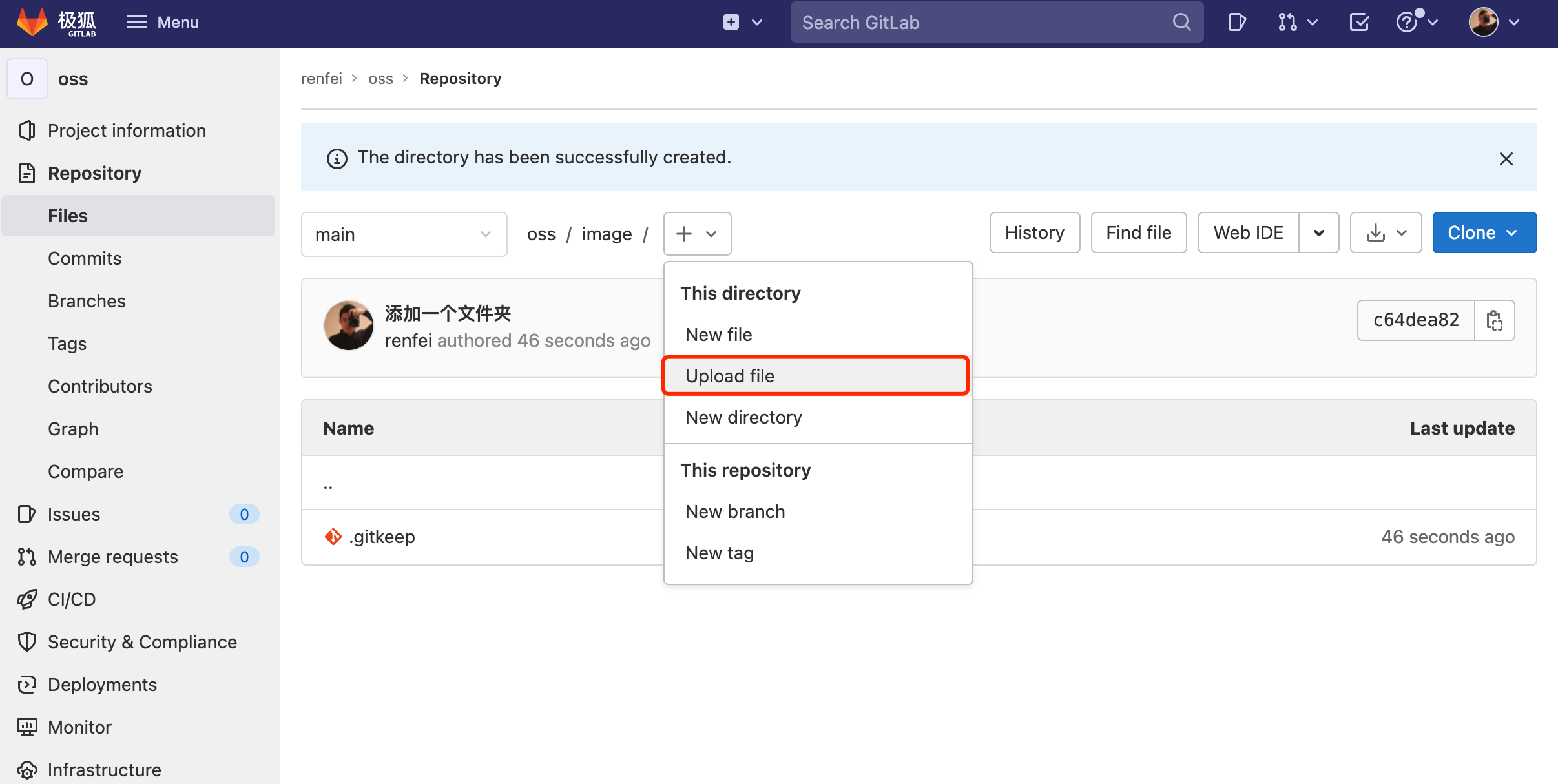
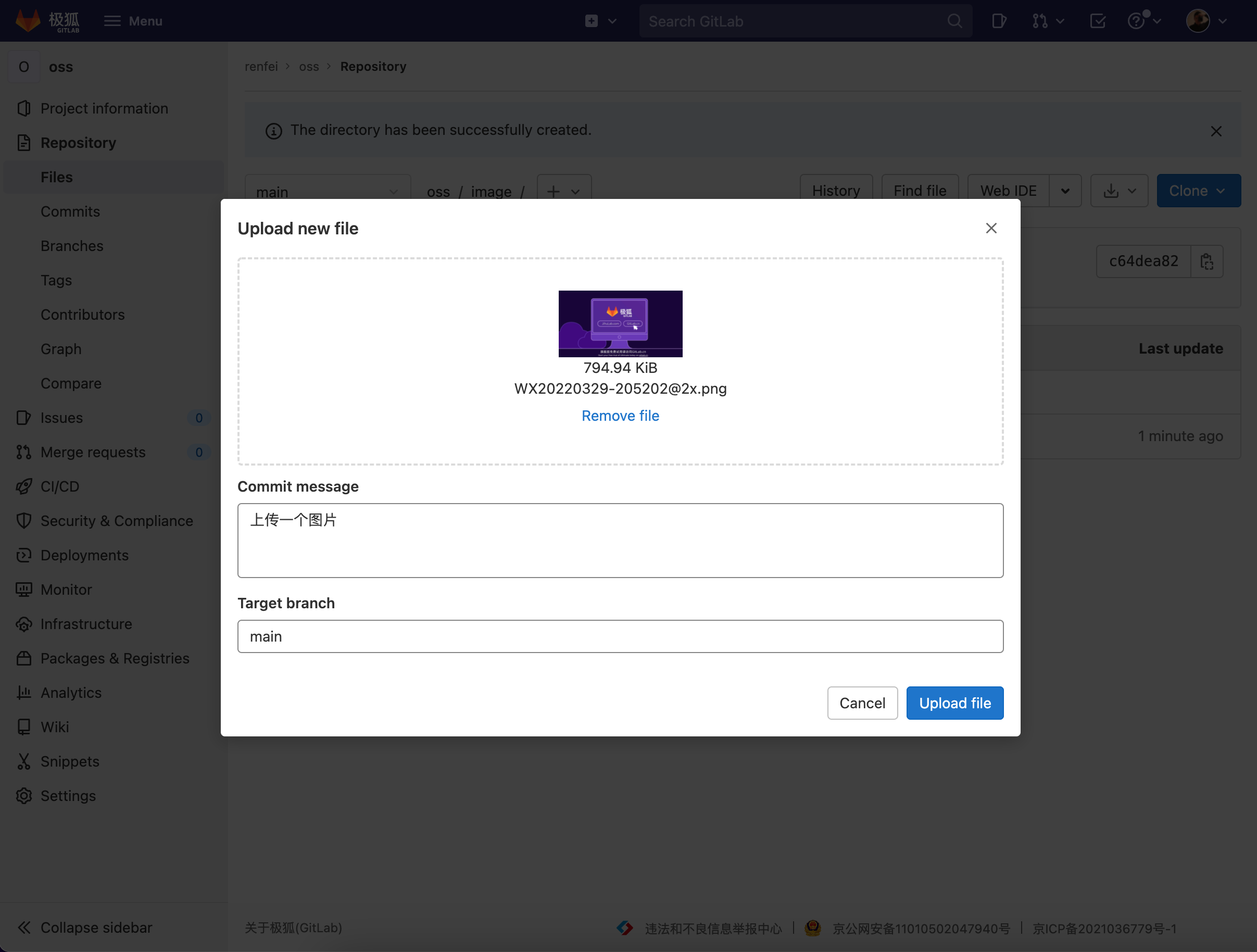
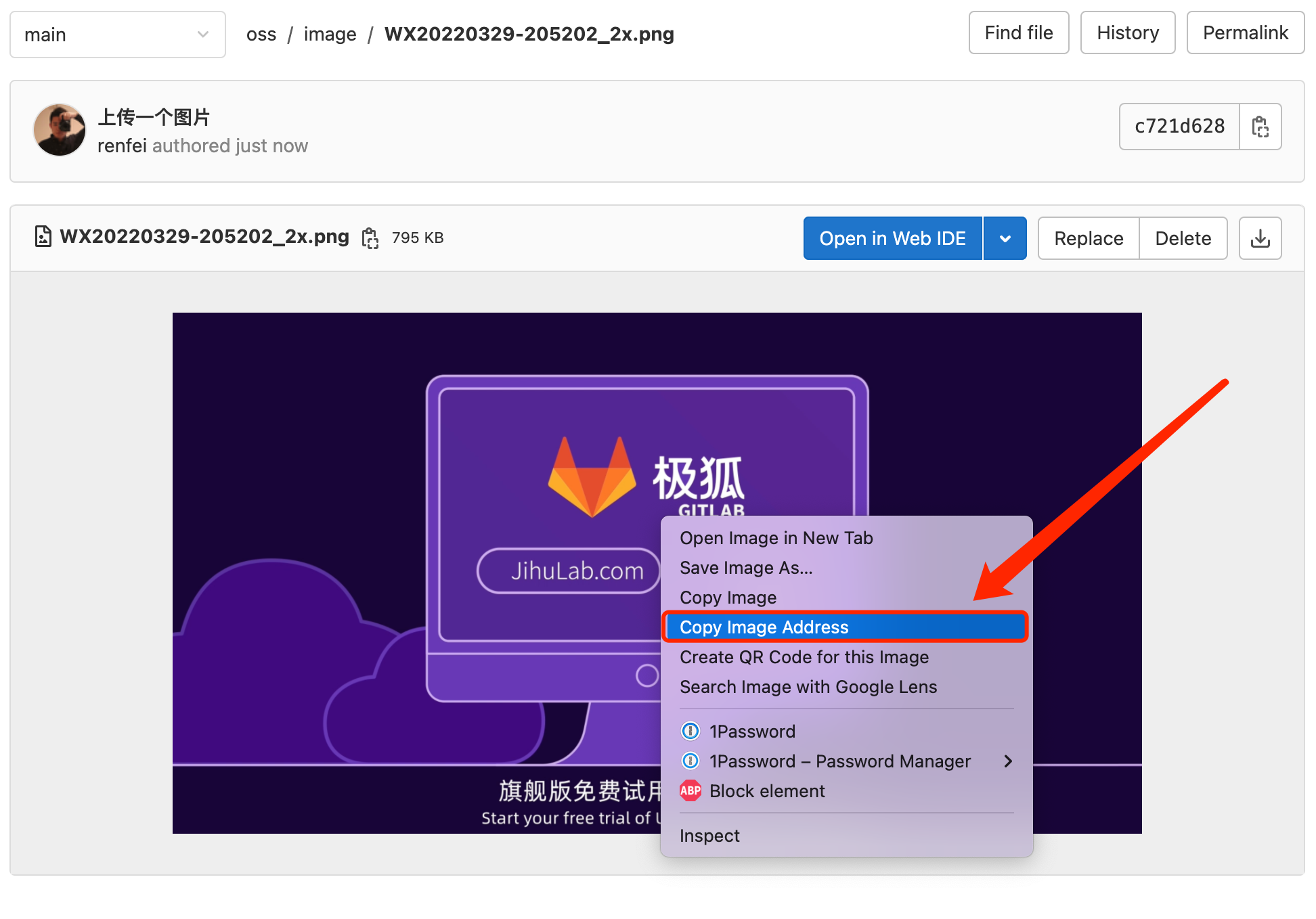
You can upload an image directly on the page, then right-click to copy the image link and use it on your own site, for example: https://cdn.renfei.net/demo/JIHUGitLabDemo.html
Uploading Videos
If you need video too, JH GitLab SaaS can hotlink that as well. Before you start, though, a few things to keep in mind:
-
A single repository on JH GitLab SaaS is capped at 2GB; going over requires buying a capacity add-on
-
Managing large files directly with Git is slow, so you need Git LFS.
So, video means large binary files, which takes some technical skill — use Git LFS to manage them. First clone your repository locally, then follow these installation steps.
Git LFS
Git diffs every file for version control, and large files are usually binary. Saving a full copy of a big file per version bloats the repo and slows everything down. LFS (Large File Storage) was built to solve exactly this: it stores the marked large files in a separate repository and keeps only lightweight pointers in the main one. When you check out a version, the corresponding large file is fetched according to the pointer change, instead of keeping every version locally.
Installing Git LFS
I’m a macOS user, so I’ll only cover macOS here. For other environments, search for the install method yourself.
-
Open Terminal on macOS; a few commands and you’re done.
-
First install HomeBrew (skip if you have it):
/usr/bin/ruby -e "$(curl -fsSL https://raw.githubusercontent.com/Homebrew/install/master/install)" -
Then run:
brew install git-lfs -
Finally cd into your repository and run:
git lfs install -
Then declare which file types to track — here we track
*.mp4files:git lfs track "*.mp4" -
This generates a
.gitattributesfile, which also needs to be added to version control -
To see the currently tracked file types:
git lfs track
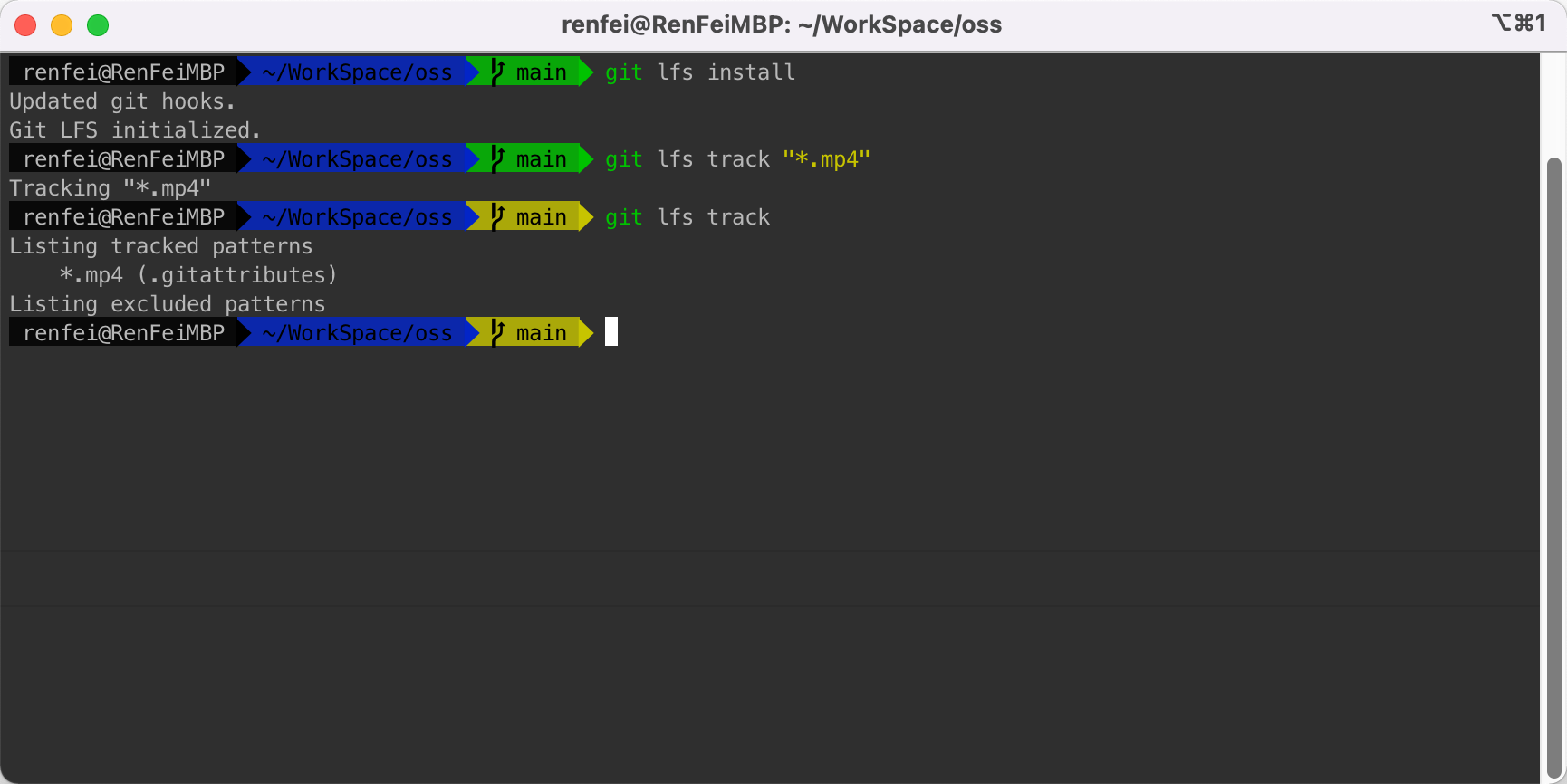
At this point Git LFS is installed; the rest is normal committing. You can use a GUI tool or the command line — git’s commit commands are simple anyway, so let me mention them.
Git Commit and Push Steps
-
Check the current repo status:
git status -
Add files to version control:
git add .orgit add xxx -
Commit the changes:
git commit -m "write a note when committing" -
Push the local repo to the remote:
git push
Embedding Video
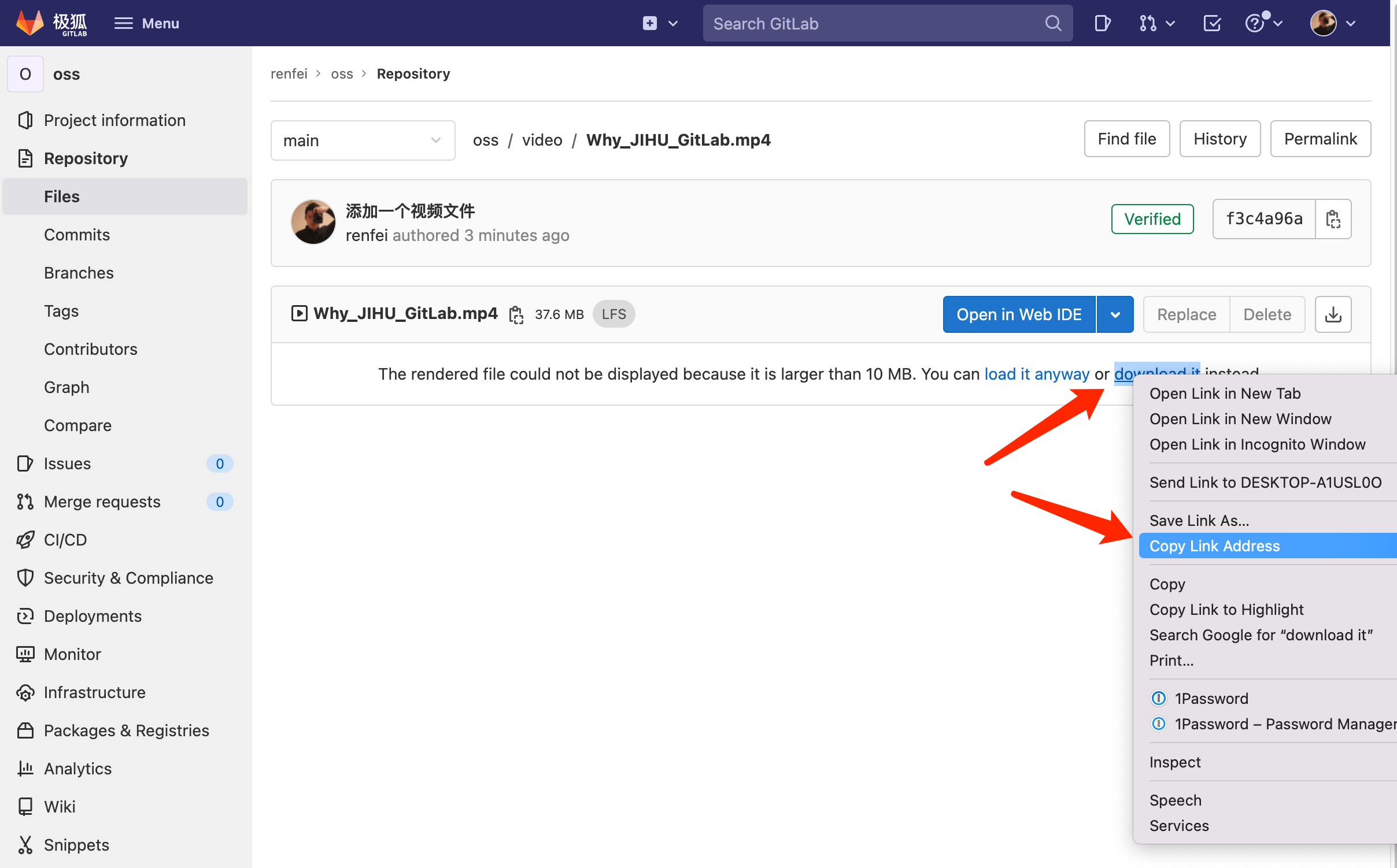
After the steps above, go back to the JH GitLab SaaS platform and click the uploaded video file. There’s a download link — right-click and copy it, then you can embed the video on your own page, for example: https://cdn.renfei.net/demo/JIHUGitLabDemo.html