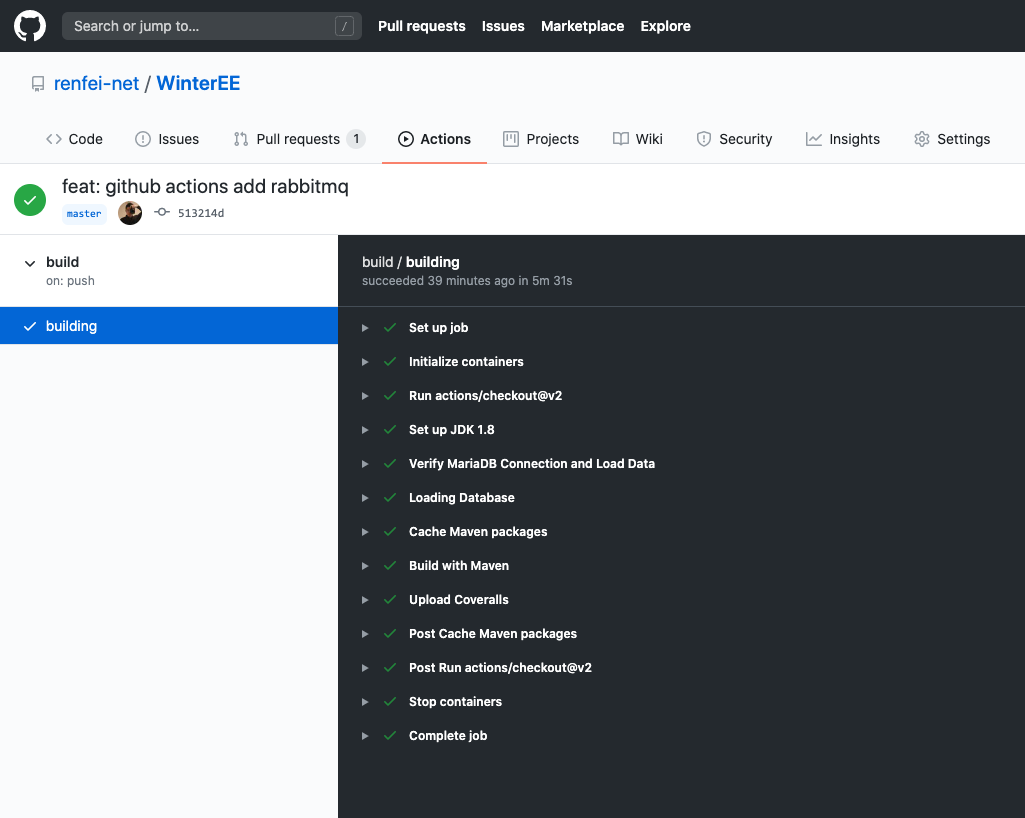
GitHub Actions is a continuous integration service launched by GitHub in October 2018. I used Travis CI before; yesterday I tried GitHub Actions and found it more powerful with more to play with, so I’ll share my first impressions.
What Is GitHub Actions
Comparable services to GitHub Actions include Jenkins, Azure Pipelines, CircleCI, and Travis CI — all continuous integration (CI) service providers. Continuous integration, simply put, is a rolling cycle of design, development, testing, and release based on the changes in each commit:
The CI process is made up of many steps — for example, preparing the runtime environment, pulling code from a specified Git branch, compiling and packaging, running unit tests, logging into a remote server, publishing to a third party, and so on. GitHub calls all these actions “Actions,” so a workflow made of multiple Actions is named GitHub Actions.
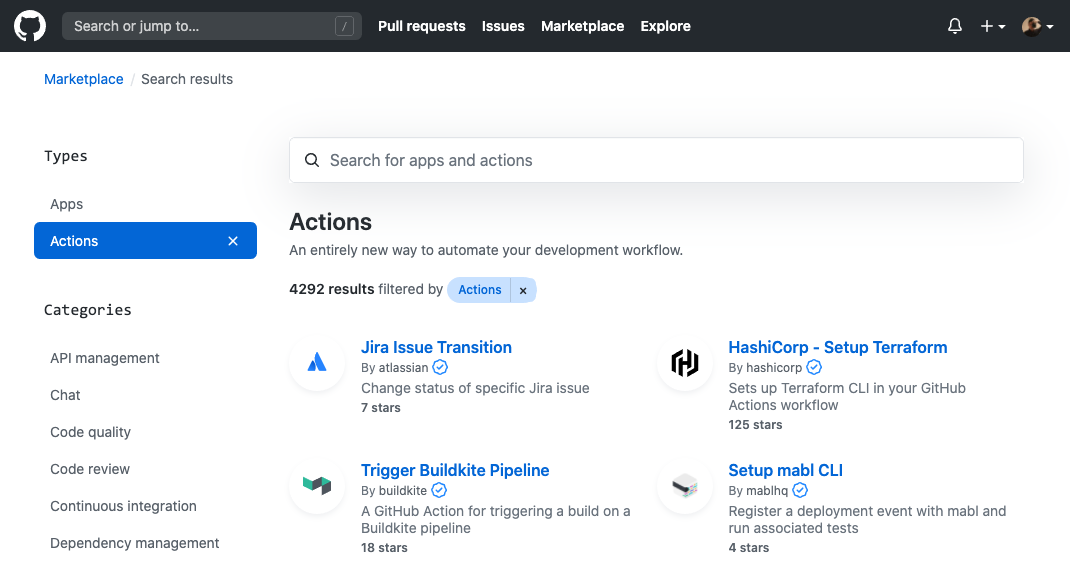
To make Actions reusable, GitHub also provides an official marketplace where you can search for Action scripts submitted by others, plus repositories of Actions collected by others: awesome actions.
The Composition of GitHub Actions
GitHub Actions consists of the following parts:
- workflow: one run of continuous integration is one workflow.
- job: a workflow consists of one or more jobs, meaning one run of continuous integration can complete multiple tasks.
- step: each job consists of multiple steps, completed one by one.
- action: each step can run one or more commands (actions) in sequence.
GitHub Actions Workflow Files
To configure a GitHub Actions workflow, we only need to define a YAML file, stored in the .github/workflows directory of the code repository. For example, my workflow file: https://github.com/renfei-net/WinterEE/blob/513214d5e7288cee65721c9d05aebdff18d60a04/.github/workflows/build.yml. The file name is up to you, no requirements. The workflow syntax has many fields; see the official docs. Below is the workflow file I wrote:
name: build
on: [push, pull_request]
jobs:
  build:
    name: building
    runs-on: ubuntu-latest
    services:
      mysql:
        image: mysql:5.7
        ports:
          - 3306:3306
        env:
          MYSQL_ALLOW_EMPTY_PASSWORD: yes
          MYSQL_DATABASE: winteree
          MYSQL_ROOT_PASSWORD: root
        options: --health-cmd="mysqladmin ping" --health-interval=5s --health-timeout=2s --health-retries=3
      rabbitmq:
        image: rabbitmq:3.7.26-management-alpine
        ports:
          - 15672:15672
          - 5672:5672
      zipkin:
        image: openzipkin/zipkin:2.21.1
        ports:
          - 9411:9411
      redis:
        image: redis:6.0.1
        ports:
          - 6379:6379
    steps:
      - uses: actions/checkout@v2
      - name: Set up JDK 1.8
        uses: actions/setup-java@v1
        with:
          java-version: 1.8
      - name: Verify MariaDB Connection and Load Data
        env:
          PORT: ${{ job.services.mysql.ports[3306] }}
        run: |
          while ! mysqladmin ping -h"127.0.0.1" -P"$PORT" --silent; do
            sleep 1
          done
      - name: Loading Database
        env:
          PORT: ${{ job.services.mysql.ports[3306] }}
        run: mysql -h 127.0.0.1 -P $PORT -uroot -proot --default-character-set=utf8 winteree < environment/db/winteree.sql
      - name: Cache Maven packages
        uses: actions/cache@v2
        with:
          path: ~/.m2
          key: ${{ runner.os }}-m2-${{ hashFiles('**/pom.xml') }}
          restore-keys: ${{ runner.os }}-m2
      - name: Build with Maven
        run: mvn -B clean package --file pom.xml
      - name: Upload Coveralls
        shell: bash
        run: |
          curl -s https://codecov.io/bash
          mvn clean test org.jacoco:jacoco-maven-plugin:prepare-agent install org.jacoco:jacoco-maven-plugin:report
mvn org.eluder.coveralls:coveralls-maven-plugin:report -DrepoToken="${{ secrets.coveralls_token }}"- name: the name I gave this workflow. You can give it your own name; no requirements.
- on: specifies the conditions that trigger the workflow, usually some events. I defined that the push and pull_request events trigger this workflow.
- jobs: the body of the workflow file, representing one or more tasks to execute.
- jobs.build: the ID I gave this task, “build”. Below I’ll use <job_id> to stand in for this task ID; you can give your task your own task ID.
- jobs.<job_id>.name: the name I gave this task, “building”. You can give your task your own task name.
- jobs.<job_id>.runs-on: specifies the virtual machine environment needed to run. It is required. Currently available VMs: ubuntu, windows, macOS.
- jobs.<job_id>.services: declares the services the runtime environment needs. I used MySQL, RabbitMQ, Zipkin, Redis.
- jobs.<job_id>.steps: specifies the run steps of each job, which can contain one or more steps.
- jobs.<job_id>.steps.name: the name of this step.
- jobs.<job_id>.steps.run: the command or action this step runs.
- jobs.<job_id>.steps.env: the environment variables this step needs.
Using Secrets in GitHub Actions
Secrets should not be exposed in the code repository, so first add your secret in the project repository’s Settings -> Secrets. For example, I added a secret named “COVERALLS_TOKEN”:
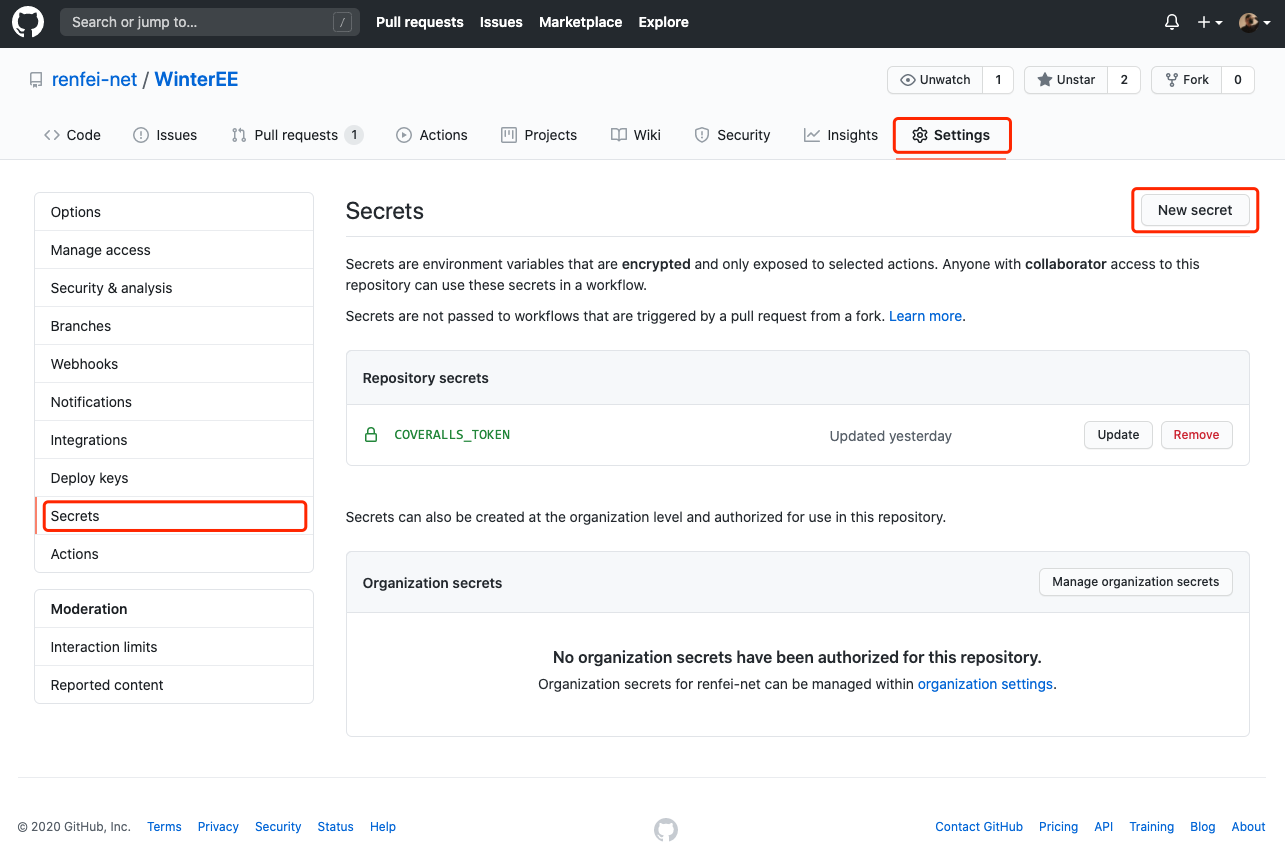
Then use it in the workflow file in the format ”${{ secrets.coveralls_token }}”.
GitHub Actions Badge Icons
After that, every time you push source code after a change, GitHub Actions runs automatically. How do you know the result? GitHub Actions provides us with badge icons that you can add to your project’s homepage. The icon address syntax is:
https://github.com/<OWNER>/<REPOSITORY>/workflows/<WORKFLOW_NAME>/badge.svg?branch=<branch-name>: the owner’s username : the project repository name - <WORKFLOW_NAME>: the workflow name
: the branch name; defaults to the master branch if omitted
So my icon address is: https://github.com/renfei-net/WinterEE/workflows/build/badge.svg
My Impressions
I had been using Travis CI before. After using GitHub Actions this time, it feels much faster than Travis CI, supports more than Travis CI, isn’t complicated to configure, and is highly playable — it can automate a lot of things. From now on I’ll mainly use GitHub Actions for CI/CD.