
Plenty of people still have older computers lying around and want to install Windows 11, but the Win11 installer runs a hardware check that includes TPM 2.0, Secure Boot, and 4GB of RAM. Here’s how to skip those checks and install Win11 anyway.
This bypass was made public by BleepingComputer on July 2, 2021.
Editing the Registry
Once you’ve booted into the installer, you can edit the registry to make it skip the TPM 2.0, Secure Boot, and 4GB RAM checks — either automatically or manually.
After entering the installer screen, press Shift + F10 (if your keyboard has an Fn key, you may need to press it as well). A black command prompt opens; type this command and hit enter:
regeditThat launches the Registry Editor. There are two ways to make the change — automatic and manual. I prefer automatic: first download the registry file at https://cdn.renfei.net/upload/2022/bypass.reg
Editing the Registry Automatically
In the Registry Editor, click File, then Import, pick the downloaded bypass.reg file, and import it. The registry is modified automatically. Then close the Registry Editor, close the command prompt, and start the installation.
Editing the Registry Manually
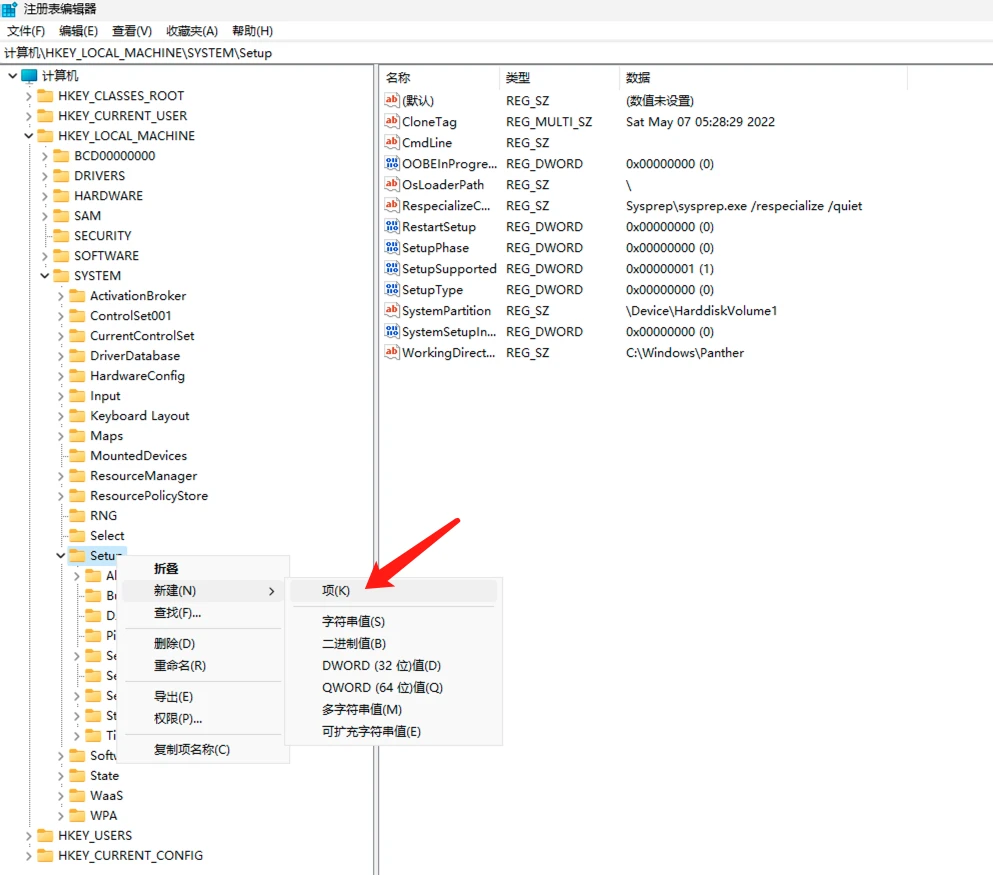
If you’d rather not do it automatically, you can configure it by hand. In the Registry Editor, expand [HKEY_LOCAL_MACHINE\SYSTEM\Setup], right-click the Setup node, click New, then Key, and create a key named [LabConfig]:
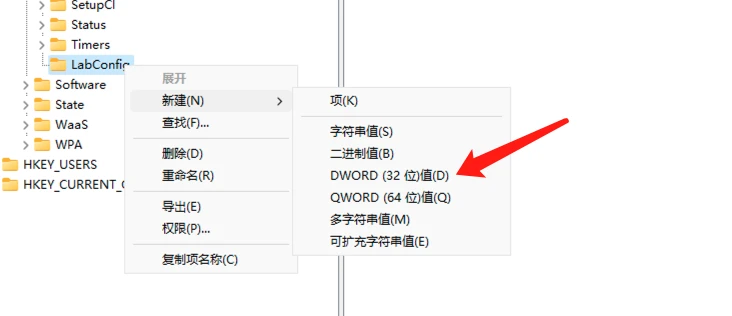
Right-click the new [LabConfig] key, create a new DWORD (32-bit) Value named BypassTPMCheck, double-click BypassTPMCheck, and set its value to 1:
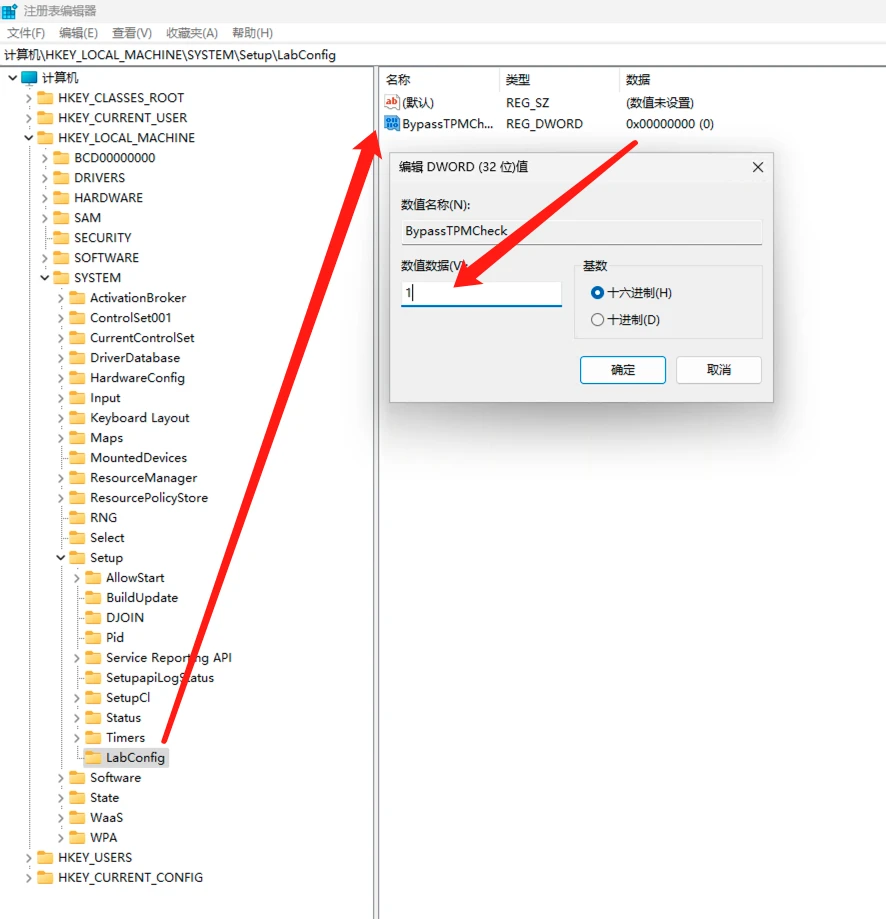
Following the same method, add another DWORD (32-bit) Value named BypassSecureBootCheck, double-click it, and set the value to 1;
Do the same again with another DWORD (32-bit) Value named BypassRAMCheck, setting the value to 1;
Do the same again with another DWORD (32-bit) Value named BypassStorageCheck, setting the value to 1;
Do the same again with another DWORD (32-bit) Value named BypassCPUCheck, setting the value to 1;
That completes the manual registry edits. Close the Registry Editor, close the command prompt, and start the installation.
Security Notes
Be aware that disabling these features may affect Windows 11 performance or stability, so only use them on virtual machines or test machines where you’re fine working in an unsupported environment.
Also, by bypassing the TPM 2.0 requirement you are effectively reducing security in Windows 11.
Finally, running Windows 11 on less than 4GB of memory isn’t the best experience, and it isn’t recommended.