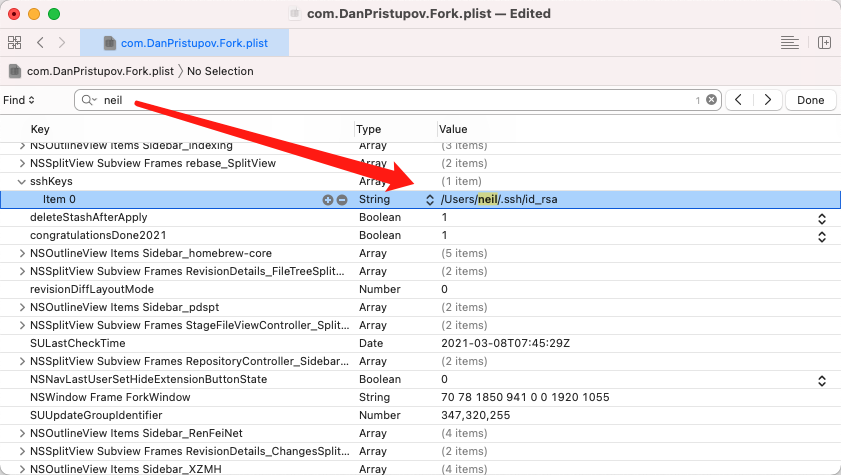
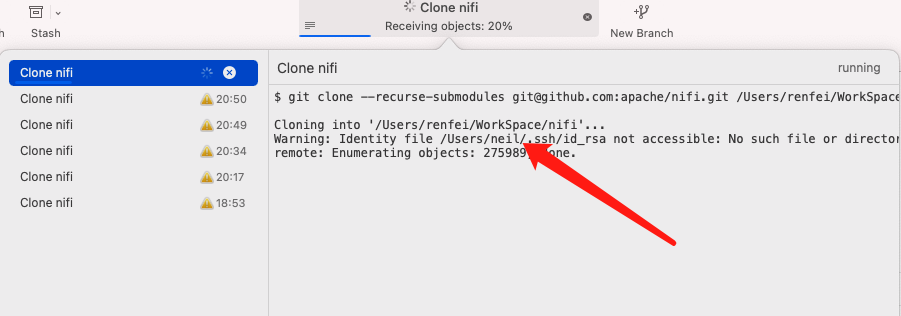
Somewhere along my long history with macOS I hit a bizarre failure from unknown causes, and Apple support suggested I create a new account. So I changed my username from “neil” to “renfei”. After copying my data over from the old home folder, various apps kept throwing errors — and judging by the messages, they were still looking for paths under the old username.
As a software developer I knew something must be storing those references: app configuration that never got updated. So I went hunting for config files.
Where Config Files Live
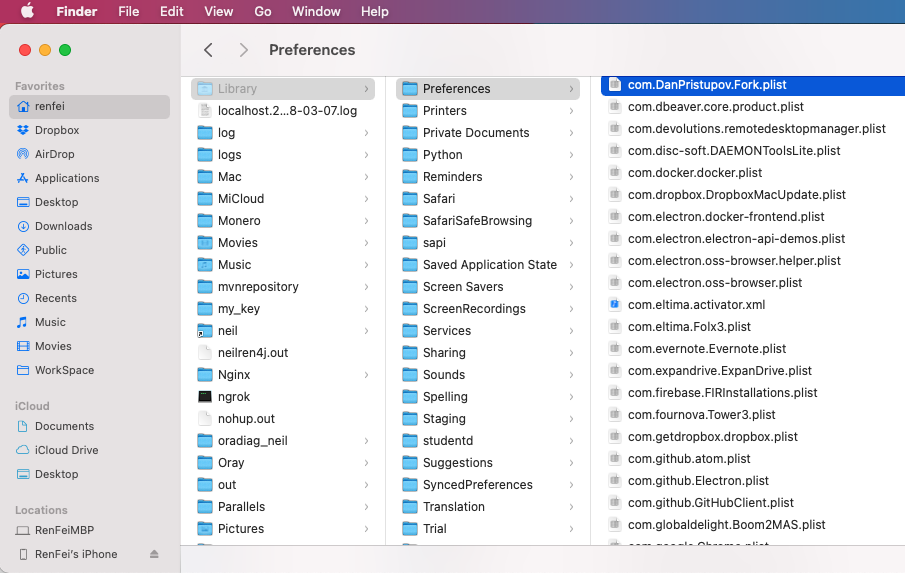
On macOS the most common places for applications to keep their configuration are /Users/<username>/Library/Preferences and /Users/<username>/Library/Application Support, so that’s where I started looking. If you open /Users/<username>/ and find no Library folder, it’s simply hidden — press command + shift + G and jump straight there.
Search works wonders, and I quickly found the file I needed: /Users/renfei/Library/Preferences/com.DanPristupov.Fork.plist.
How to Open a plist File
You might try a text editor, but it’ll be gibberish: these files are meant to be opened with Xcode. You may need to download Xcode first, then it may prompt you to install plugins — wait for that to finish and you’re in.
Once open, use search (command + F) and type your old username to find the configuration property holding it.