

After moving from a virtual host to a VPS, I’m using IIS7. Today I wanted to set up a custom 404 page. I set it up quickly, but for missing files it didn’t return my 404 page — it returned a 500. After searching online I soon found a post from the official blog of the AsiaTech Microsoft Global Technical Support Center Internet Development Support Team. Original: http://blogs.msdn.com/b/asiatech_zh-cn/archive/2010/12/27/iis7-404-500-19.aspx
IIS returned: 500.19 - Internal Server Error — Absolute physical path “driver:path” is not allowed in system.webServer/httpErrors section in web.config file. Use relative path instead.
Microsoft gave two solutions. The first one didn’t work for me; I used the second.
Solution 1:
- 1. In the ApplicationHost.config file, set
<system.webServer> <httpErrors>’s allowAbsolutePathsWhenDelegated to “true”.
<system.webServer>

 ...

<httpErrors allowAbsolutePathsWhenDelegated="true">

 <error statusCode="401" prefixLanguageFilePath="%SystemDrive%inetpubcusterr" path="401.htm" />

 <error statusCode="403" prefixLanguageFilePath="%SystemDrive%inetpubcusterr" path="403.htm" />

 <error statusCode="404" prefixLanguageFilePath="%SystemDrive%inetpubcusterr" path="404.htm" />

 <error statusCode="405" prefixLanguageFilePath="%SystemDrive%inetpubcusterr" path="405.htm" />

....

 </httpErrors>
</system.webServer>- 2. Restart IIS.
Solution 2 1. In IIS Manager, go to Features Views → Management Area, double-click “Feature Delegation”. Select Error Pages and click Read Only, as shown below.  2. In the physical directory of C:\inetpub\wwwroot or any of your web applications, open the web.config file and remove the following section.
<handlers accessPolicy="Read, Script" />
 <httpErrors>
 <remove statusCode="404" subStatusCode="-1" />
 <error statusCode="404" prefixLanguageFilePath="" path=" E:Temperror404.html " responseMode="File" />
</httpErrors>
If there is no other configuration in the config file, you can simply delete the web.config file that IIS generated for delegation Read/Write. 3. Restart IIS. More information on how to set a custom 404 page in IIS7. You can do it through the following steps:
- 1. Create a file named custom404.html and save it to your web directory (usually c:\inetpub\wwwroot).
- 2. Open Internet Information Services (IIS) Manager.
- 3. In the Connections pane (left), expand the relevant nodes to a site you want to configure custom errors for, and select that site.
- 4. At the bottom of the middle pane, click Features View.
- 5. In the middle pane, double-click Error Pages.
- 6. Double-click Status Code 404.
- 7. In the Edit Custom Error Page dialog:
- a. In the “Insert content from static file into the error response” field, enter the physical path. When a page isn’t found, an HTTP 404 error is returned and your custom 404 page is shown.
- b. In the “Execute a URL on this site” field, enter an absolute path. In this example, enter /custom404.html. When a page isn’t found, an HTTP 200 error is returned and your custom 404 page is shown.
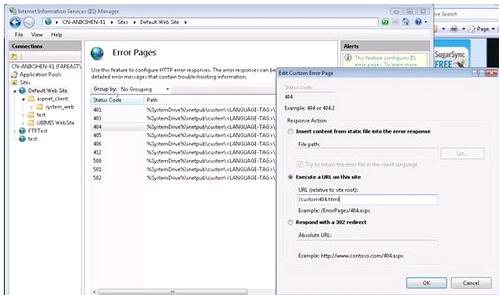
- 8. Click OK.
Reference HTTP Errors http://www.iis.net/ConfigReference/system.webServer/httpErrors